Print Shipping Labels

Objective
Users will be able to print shipping labels.
Overview
Shipping labels can be viewed and printed through the Carrier Portal. Labels can be printed in three different sizes:
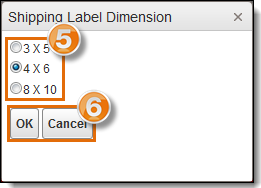
- 3 x 5
- 4 x 6
- 8 x 10
Single or multiple shipping labels may be printed.
Process
To Print a Shipping Label:
- Access the Carrier Portal. See Log In to the Carrier Portal for details.
- Search for and select a load from the results grid. See Performing Searches
- Hover your mouse over the Shipping Documents button.
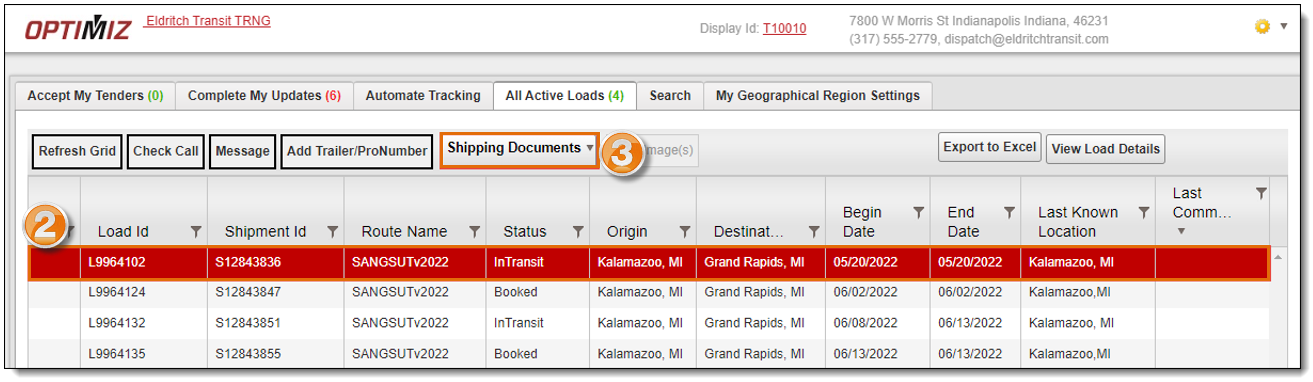
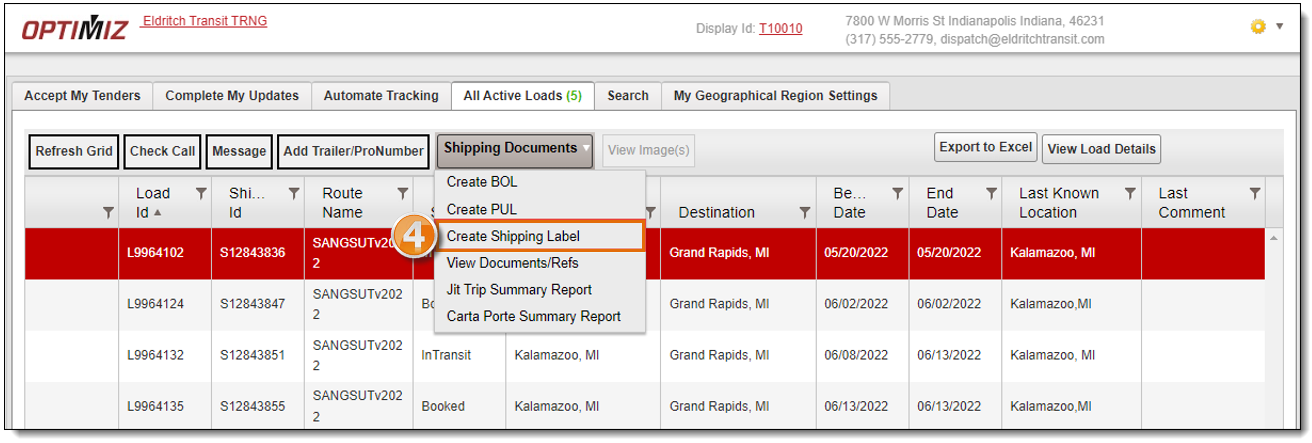
- Select Create Shipping Label.
- Select the Shipping Label Dimension.
- Click OK to view and print the shipping label or Cancel to exit without viewing.
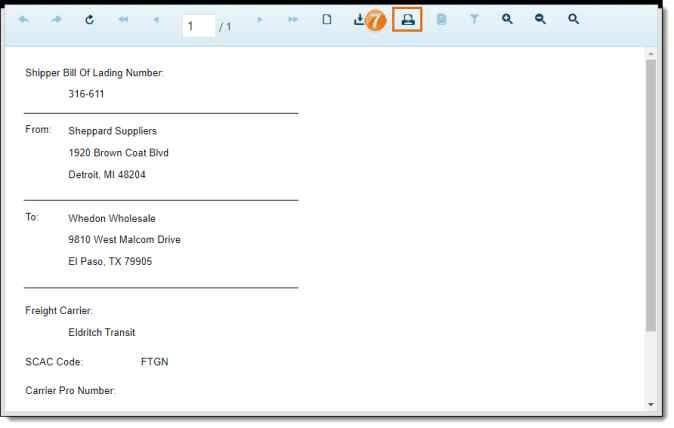
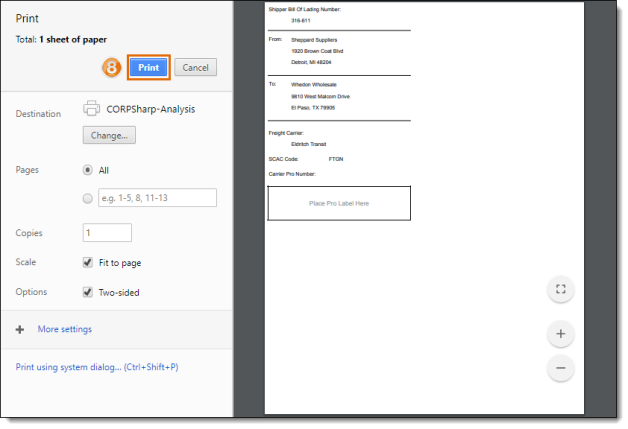
- The requested label opens in a new tab. Click the Print icon.
- Click Print.
To Print Multiple Shipping Labels:
- Access the Carrier Portal. See Log In to the Carrier Portal for details.
- Search for and select a load from the results grid. See Performing Searches
- Hover your mouse over the Shipping Documents button.
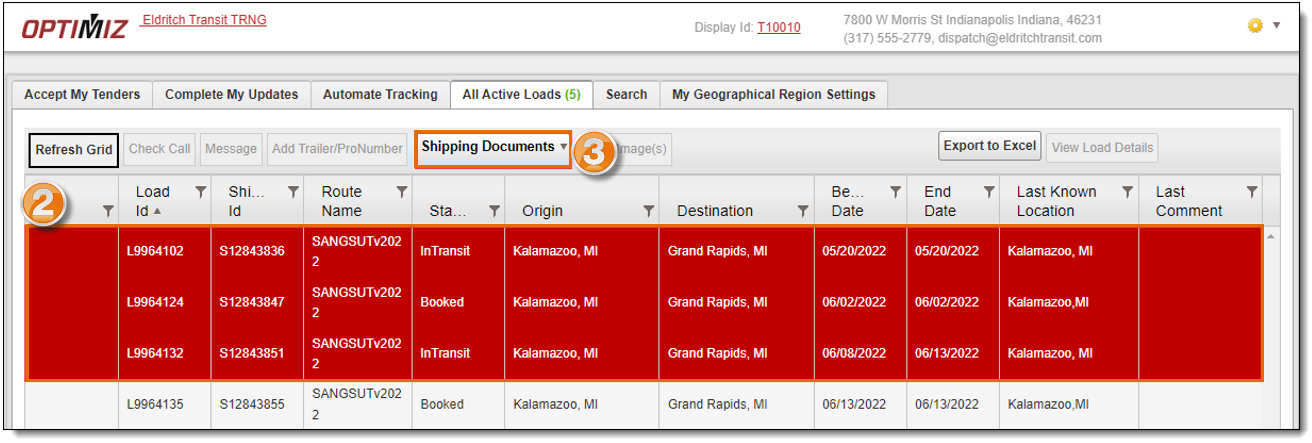
- Repeat steps 4 through 8 of To Print a Shipping Label above.
Result
The shipping labels are printed.
Related Topics
Now that you know more about printing shipping labels, you may want to read more about: