Add a Document to a Shipment
Overview
Prerequisites
Before you can add a document to a shipment, you must access the Missing Documents tile. See Access Missing Documents.
Process
To add a document to a Shipment:
- Search for the shipment to be updated, if needed. See Search for a Shipment with Missing Documents.
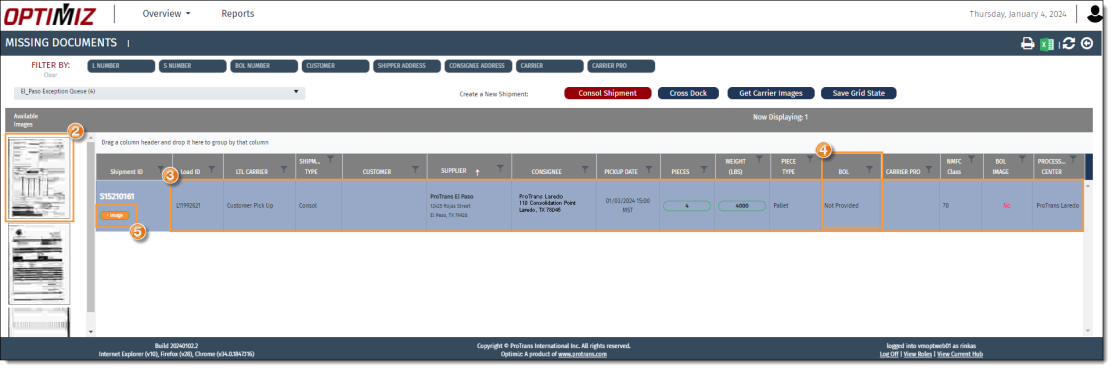
- Select the image from the images available in the system that matches the shipment that is missing the document. Multiple images can be selected by holding the Ctrl key on your keyboard and clicking additional images.
- Review the information displayed on the image(s), and compare it to the information in Optimiz. Verify the Supplier, Consignee, pieces, weight, piece type, BOL number, and carrier pro match.
- Enter the BOL number in the BOL column in the results grid if it is missing.
- Click +Image to assign the selected image(s) to the shipment.
Result
The document has been added to the shipment.