Set the Operational Routing Guide
Overview
When Should I Set the Operational Routing Guide?
The Operational Routing Guide should be set whenever a customer has certain settings that can be designated by region.
Process
To Set the Operational Routing Guide:
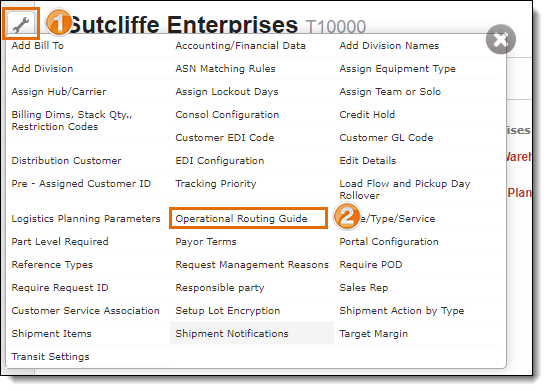
- Click the wrench at the applicable level of the Customer Hierarchy. See Access the Customer Hierarchy.
- Click Operational Routing Guide.
- Click Add New Record.

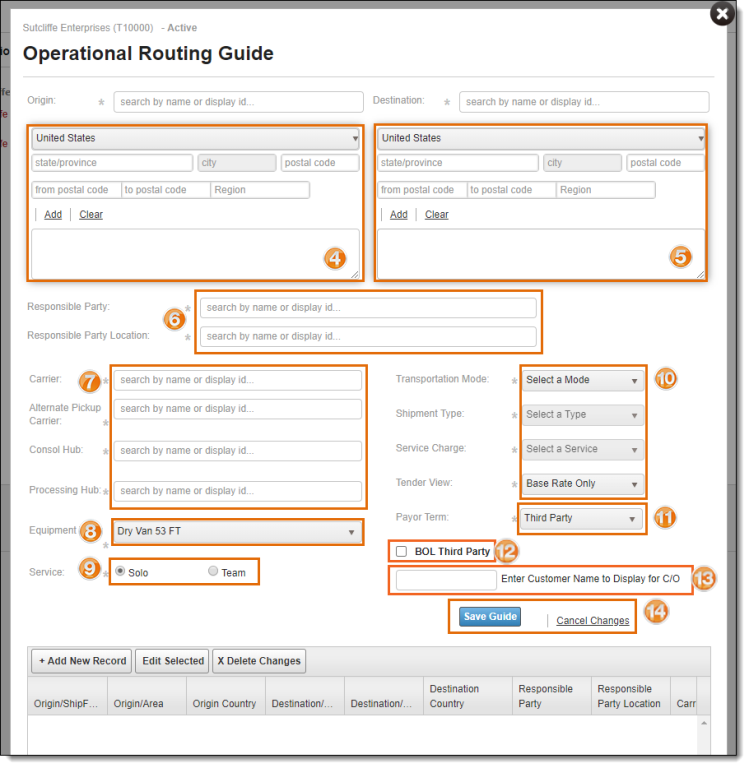
The edit screen opens. Only the origin or destination are required. All other input fields are optional.
- Enter the Origin region. Click Add when finished.
- Enter the Destination region. Click Add when finished.
- Enter the responsible party information. See Set Responsible Party, Responsible Party Location, and Shipment Action for more information.
- Enter the carrier and hub information. See Assign Hub and Carrier for more information.
- Select the Equipment Type. See Assign or Edit Equipment Type for more information.
- Select the Service. See Assign a Team or Solo Transit for more information.
- Select the Transportation Mode, Shipment Type, Service Charge, and Tender View. See Set Transportation Mode, Shipment Type, and Service Charge for more information.
- Select the Payor Term. See Set Default Payor Terms for more information.
- Select BOL Third Party if ProTrans should not be listed as the Care Of party on Optimiz-generated bills of lading.
- Enter Customer Name to Display for C/O instead of ProTrans when BOL Third Party is selected, if needed.
- Select Save Guide to save changes or Cancel Changes to exit without saving.
Result
The Operational Routing Guide is saved.