Assign or Edit Equipment Type
Overview
A default for a specific equipment type can be set for an entity, typically a supplier, at the Trading Partner Level of the Customer Hierarchy. The setting is associated with the tender for every shipment processed and directs the Carrier to use the assigned equipment type. Equipment types are set to meet the needs of the shipment and associated with a specific Trans Mode and Shipment Type; i.e., a 53' Dry Van cannot be set for an LTL Direct.
Example:
For a Transportation Mode of LTL and a Shipment Mode of Direct, an equipment type of Flatbed 53 ft is assigned as the default equipment type. When a shipment is created for that customer and LTL/Direct is selected, the equipment type of flatbed 53 ft. is automatically entered.
When Should I Assign or Edit an Equipment Type?
Supply Chain Managers assign equipment types when the type is frequently used and the aim is for them to auto-populate during Shipment Entry.
Prerequisites
Before you can set an equipment type:
- The appropriate transportation mode and shipment type must be available in the dropdown. This is an administrative function. See Add a Transportation Mode.
- The appropriate equipment type must be available in the dropdown list. This is an administrative function. See Add an Equipment Type.
Process
To Set an Equipment Type and Associate It With a Transmode and Shipment Mode Pair:
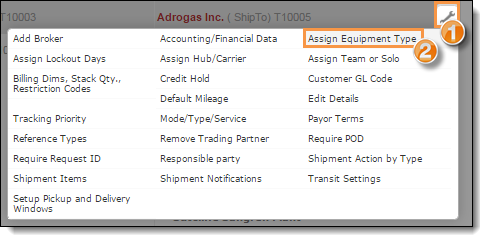
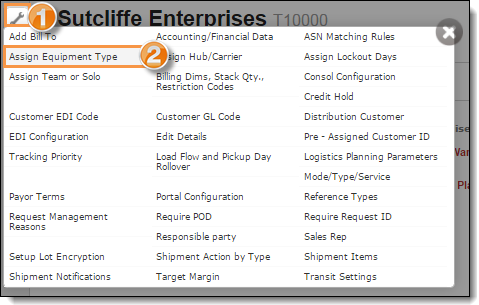
- Click the wrench at any level of the customer hierarchy. See Access the Customer Hierarchy.
- Click Assign Equipment Type.
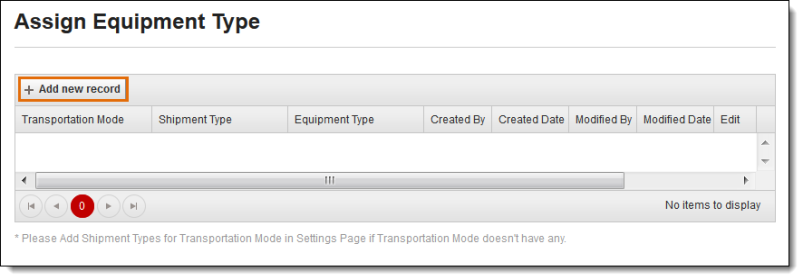
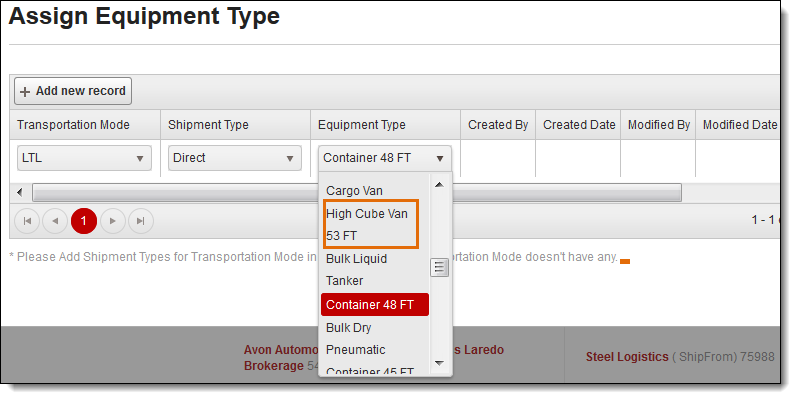
- Click +Add new record.
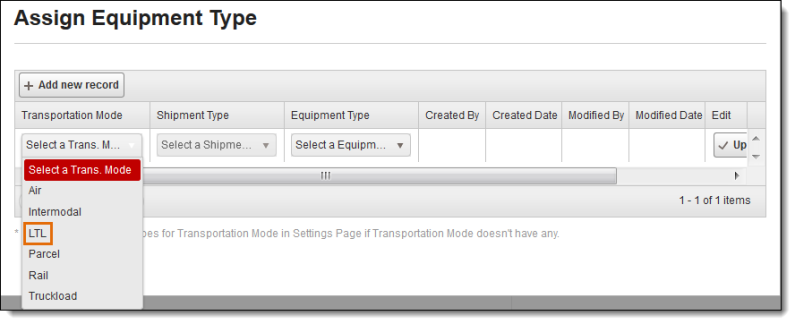
- Select a Transportation Mode from the dropdown; a shipment or equipment type cannot be selected without first selecting a transportation mode.
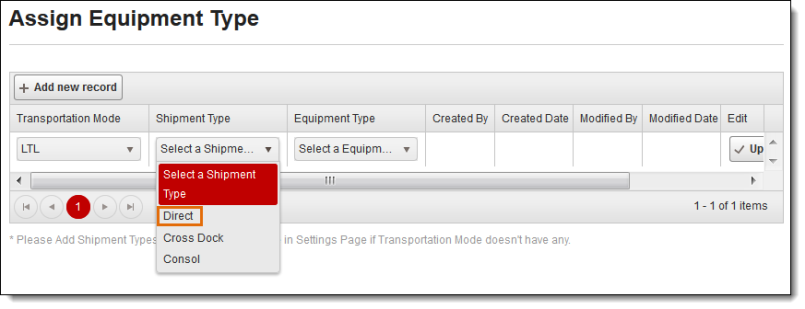
- Select a Shipment Type from the dropdown; an equipment type cannot be selected without first selecting a shipment type.
- Select an Equipment Type from the dropdown.
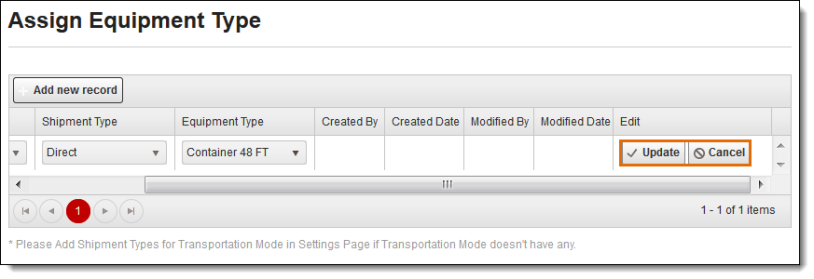
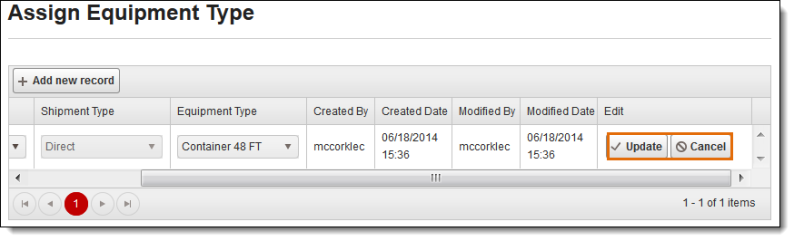
- Click Update to save the new record or Cancel to discard it.
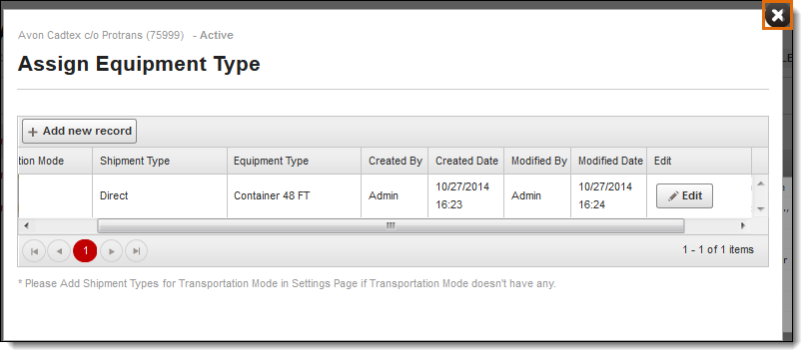
- Click the X in the upper right corner to close the window.
To Edit an Equipment Type:
- Click the wrench at any level of the customer hierarchy. See Access the Customer Hierarchy.
- Click Assign Equipment Type.
- Scroll to the right to display the Edit button.
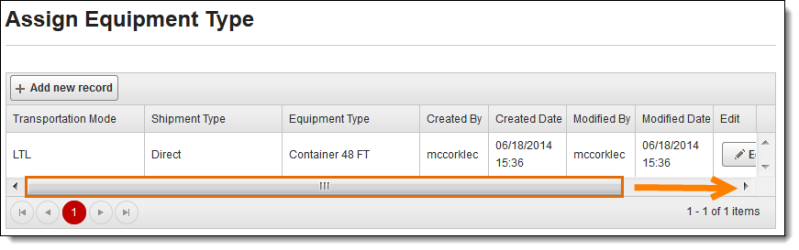
- Click Edit.
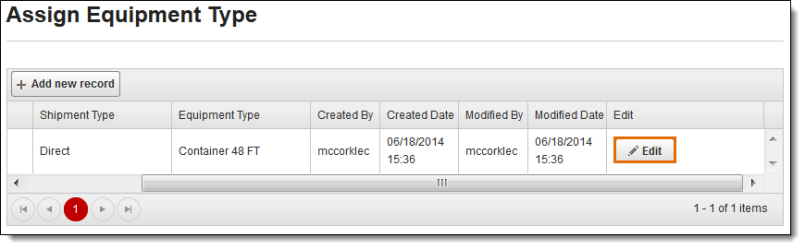
- Scroll to the left to access the fields that can be edited:
- Transportation Mode
- Shipment Type
- Equipment Type
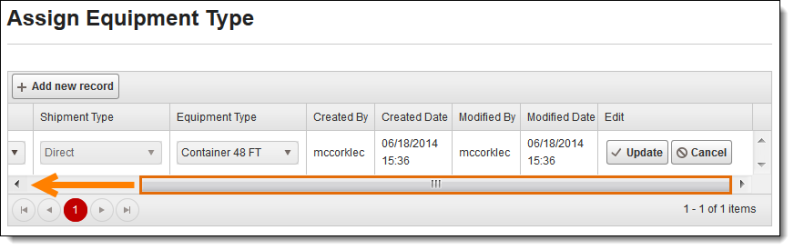
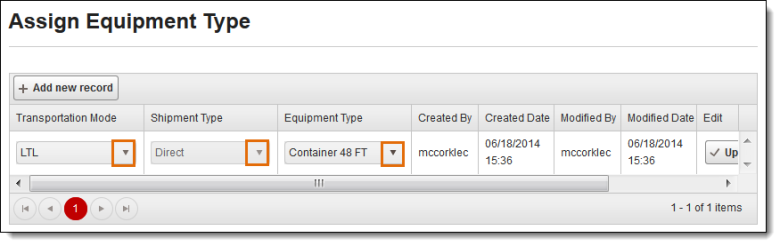
- Click the drop-down arrow to display the list for the category to be changed. The Shipment Type cannot be changed without first changing the Transportation Mode.
- After making changes, scroll to the right to display the Update button.
- Click Update to save the changes or Cancel to discard them.
Result
The default Transportation Mode/Shipment Type/Equipment Type is saved and will be used for future shipments assigned that transmode/shipment type.