Set Default Payor Terms
Overview
Payor Terms may be set at all levels of the Customer Hierarchy by accounting users. These are the contractual terms for how ProTrans is paid for services.
Example:
If the Payor Term is set for collect, payment is expected at the time of delivery of the services. Prepaid means that the services have already been paid, and third-party means someone other than the BillTo entity is going to pay for the services.
Once set, the Payor Term is used during Shipment Entry, as shown below.
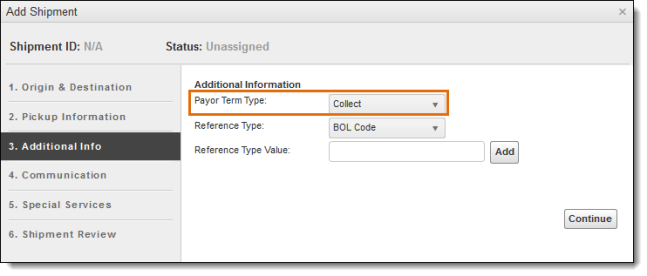
The Payor Term is generally set at the BillTo level of the customer hierarchy by Accounting users. An override can be set for an entity at the Location level.
Example:
The BillTo entity at the BillTo Level has the payor term set as None. For Entity X at the Location level, the payor term has been set for Prepaid. When Entity X is associated with a shipment, the payor term Prepaid auto-populates the Shipment Entry box.
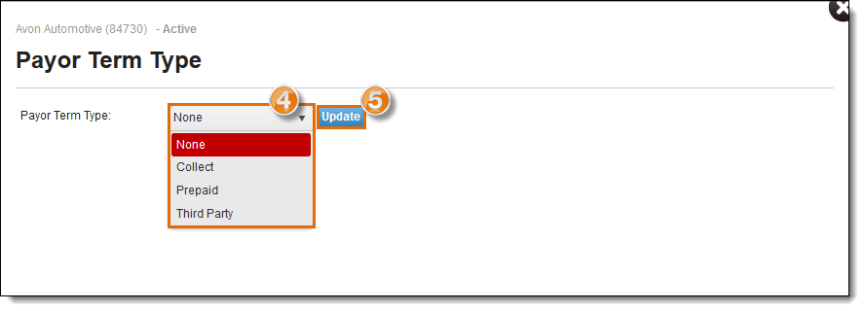
The Payor Term options are:
- None (default setting)
- Collect
- Prepaid
- Third Party
Process
To Set Default Payor Terms:
- Open the Customer Hierarchy. See Access the Customer Hierarchy.
- Click the wrench on the entity at any level of the Customer Hierarchy.
- Select Payor Terms.

- Select the Payor Term Type from the dropdown; default setting is None.
- Click Update.
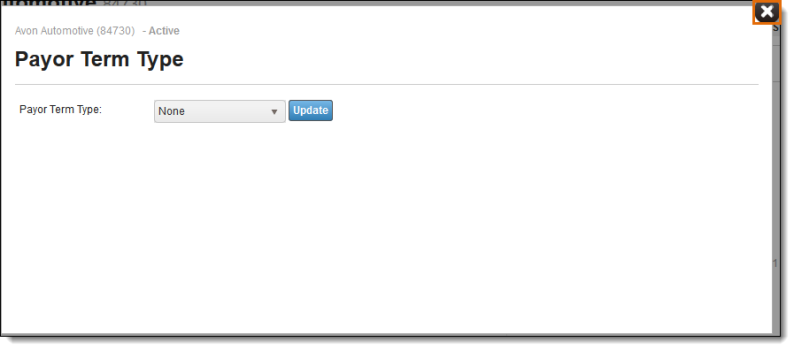
- Click the X in the upper-right corner of the Payor Term Type box to close it and return to the customer hierarchy.
To Edit a Payor Term:
- Open the Customer Hierarchy. See Access the Customer Hierarchy.
- Click the wrench on the entity at any level of the Customer Hierarchy.
- Select Payor Terms.
- Make edits to the Payor Term Type from the dropdown.
- Click Update.

- Click the X in the upper-right corner of the Payor Term Type box to close it and return to the customer hierarchy.
Result
The payor term is set and will auto-populate during Shipment Entry.