Assign a Team or Solo Transit
Overview
For any Transportation Mode/Shipment Type combination, Analysis & Engineering users can set a requirement for a shipment to be assigned as a Team or Solo transit. This setting may be set at any level of the hierarchy, but the preference is to set it at the Location level. When set, the information will auto-populate the Service field on the Additional Information tab of the Shipment Entry wizard.
When Should I Assign Team or Solo Transit?
Set this configuration when requested by the Customer.
Process
To Assign a Team or Solo Transit:
- Open the Customer Hierarchy. See Access the Customer Hierarchy.
- Click the wrench next to the entity at the appropriate level.
- Click Assign Team or Solo.
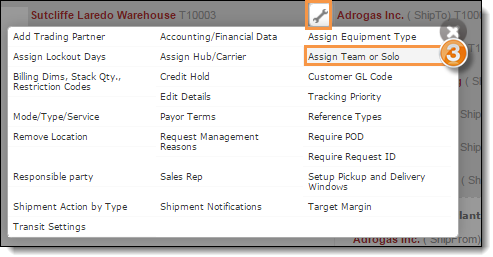
- Click +Add new record.
- Select a Trans Mode from the drop-down list.
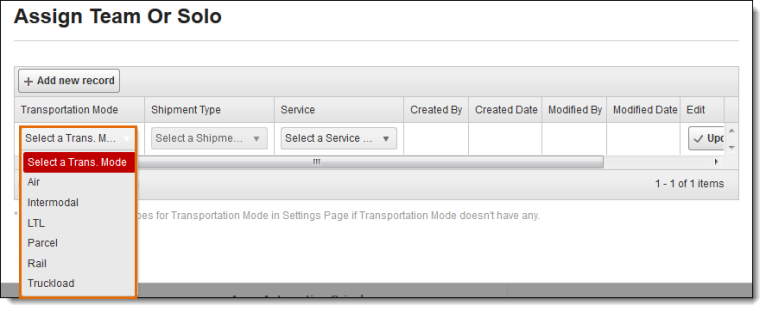
- Select a Shipment Type from the drop-down list.
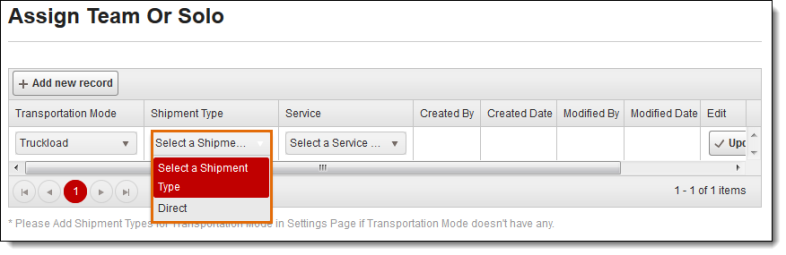
- Select a Solo or Team Service.
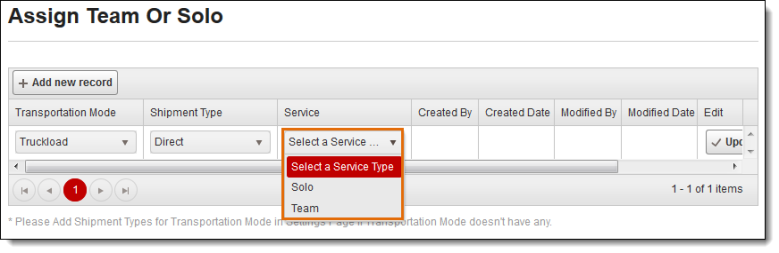
- Scroll to the right of the screen.
- Click Update to save the record or Cancel to discard it.

- Click the X in the upper right corner to close the window.

Result
The default service of Team or Solo is set. This data will auto-populate the Service field on the Additional Information tab of the Shipment Entry wizard when creating a shipment.