Search for Inactive Loads
Overview
Users can find
In general searches, Optimiz will only show results from the past 90 days. Users can view shipments and loads from up to the past 12 months by searching for their shipment or load numbers directly.
Shipments will display the physical location in the search results grid based on one of several statuses:
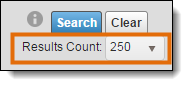
For performance reasons, Optimiz returns only the number of results selected in the Results Count dropdown below the Search button. If more than this number of results is needed, a Business Intelligence Report from bi-team@protrans.com should be ordered instead.
Areas of the Search Bar

Search By
| If You Search For | Optimiz Returns |
|---|---|
| Account Logistics Manager | All loads associated with the specific Account Logistics Manager. |
| Account Relationship Manager | All loads associated with the specific Account Relationship Manager. |
| Account Rep | All shipments associated with the specified Freight Management Account Representative. |
| Alternate Pickup Carrier | All loads associated with the Alternate Pickup Carrier entered. |
| Bill To |
|
| Carrier Development Manager | Loads matching the Carrier Development Manager responsible for relations with the assigned carrier. |
| Carrier Team |
|
| Customer |
|
| Destination Country | The country in which the destination associated with the load is located. |
| Destination State | The state in which the destination associated with the load is located. |
|
|
The destination associated with the |
|
|
All |
| Load ID | The load matching the unique, system-generated ID. |
|
|
All |
| Next Action Date | All loads for which the next expected action is scheduled to happen on this date. |
| Origin Country | The country in which the origin associated with the load is located. |
| Origin State | The state in which the origin associated with the load is located. |
|
|
The origin associated with the |
| Planning Type | All |
|
|
|
| Responsible Party | All |
| Responsible Party Location | All |
| Route Identifier | All |
| Supply Chain Manager | All loads being handled by the Supply Chain Manager selected. |
| Tracking Priority | Loads with a tracking priority of one of the following: Carrier Managed, Consol Priority, Critical, Expedite, JIT, Launch, No Tracking, Service Recovery, SPERRLAGER. |
| Trailer Barcode | The load with the selected trailer barcode. |
OSD Search By
Users can search for shipments with overage, shortage, or damage exceptions.
| If You Search For | Optimiz Returns |
|---|---|
| Damage Level | All shipments with exceptions matching the specific damage level selected. |
| Damage Type | All shipments with exceptions that have been assigned the damage type selected. |
| Overages | All shipments with exceptions matching the overage number that has been entered. |
| Shortages | All shipments with exceptions matching the shortage number that has been entered. |
Reference Types
Users can search by Reference
A reference value is associated with a
Modes
Users can search by mode in
Volume LTL Review
Users can search by Volume LTL in Carrier Planning.
Request Status
Users can search by
| Status | Description |
|---|---|
| Accepted | The request was reviewed and accepted. |
| Cancelled |
|
| Closed | The |
| Declined | The load was declined while it was still in Pending status. |
| Ordered Not Used | A carrier arrived but was unable to pick up the freight. |
| Pending | |
| Rejected | The request was reviewed and rejected. |
| Voided | An accounting employee has created an invoice and determined the invoice should not be posted to the General Ledger System (SunSystems 5.) |
Load Status
| Load Status | Description |
|---|---|
| Carrier Review | The load has not yet been assigned to a carrier. |
| Reserved | The load was tendered to the carrier, and the carrier has accepted it, but no shipments have yet been added to the load. |
| Tender Rejected | The load was tendered to the carrier, but the carrier rejected it. |
| Tender Timed Out | The load was tendered to the carrier, but the carrier did not respond in the allotted amount of time. |
GPS Tracking
Users can search by whether or not a load has GPS Tracking information.
Exceptions
Time-Sensitive Exceptions
Exception Flags
| Exception | Description |
|---|---|
| Hot | Occurs when a user flags a load as Hot. This exception serves as a visual indicator only and does not impact how Optimiz processes the load. See Hot Load. |
| Missing Cost Rate | Occurs when the cost rate is required but not added. |
Barcode Status
| Barcode Status | Description |
|---|---|
| None | There are no barcodes assigned to the handling unit. |
| Barcodes | There are barcodes assigned to the handling unit. |
Next Action
Optimiz continuously calculates when events are expected to occur and applies these to loads. For example, once a load's tender is accepted, Optimiz calculates when the carrier should arrive at the origin. If the carrier does not update Optimiz with the expected information, Optimiz will apply the Missed Arrival exception to the load.
ProTrans employees can gather information and update Optimiz before an exception occurs. This increases the confidence customers have by ensuring they have access to the most up-to-date information.
Services
Services are accessorial charges that have been attached to a shipment. These are frequently added after the shipment has been created to correctly bill all the extra services that the shipment required during transit.
Location Status
| Location Status | Description |
|---|---|
| Inbound in Yard | The load has arrived at the user's selected dock but it contains shipments that have not yet been unloaded. |
| Inbound to Dock | The load's next stop is the user's selected dock. |
| Inbound in Yard | The shipment is on a load that has arrived at the user's selected dock, but it has not yet been unloaded. |
| Inbound to Dock | The shipment is on a load that has a destination of the user's selected dock, but the load has not yet arrived. |
| On Dock Unloaded | The shipment is in unassigned status or is assigned to a location that is associated with the user's selected dock. |
| On Dock Unloaded | The load has arrived at the user's selected dock and all shipments assigned to it have been unloaded. |
| Outbound in Yard | The shipment is assigned to a load departing the user's selected dock, but no stop departure check call has been entered. |
| Outbound in Yard | The load has arrived at the user's selected dock and contains shipments destined for a different dock. |
Shipment Types
| Shipment Type | Description |
|---|---|
| Consol | The shipment is consolidated and will stop at a consol and processing hub. |
| Direct | The shipment moves directly from origin to destination. It will leave from the shipper and go directly to the consignee without stopping at any hubs. |
| Shuttle | The shipment is part of a short, direct route that may pick up at its origin, drop off at the final location, and return to the origin. |
SAF Status
| SAF Status | Description |
|---|---|
| Pending | The SAF is not attached to a shipment. |
| Sent to Customer | The SAF has been sent to the customer for approval. |
| Approved | The customer approved the SAF. |
| Declined | The customer declined the SAF. |
| Request Quote | The requests for quotes. |
| Quoted | The customer's quoted price. |
Shipment Type Status
When Should I Search?
Many activities in Optimiz require the user to search before taking action on an item. Build and run a search to find
Prerequisites
Before you can search for
- Log in to Optimiz. See Log In to Optimiz.
- Access the
Process
At least one search criterion or filter must be added. To return the most specific results, complete the steps to add all filters.
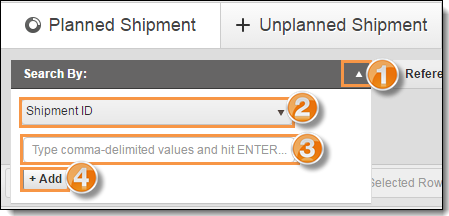
To Add a Search By Criterion:
- Click the Search By dropdown list.
- Click the dropdown list to expand the available search criteria and select a search criterion from the list.
- Enter or select the value to search by. Select the matching option from the list, if available.
- Click Add if necessary. Some search criteria are automatically added as soon as a valid item is selected from the list.
- Repeat steps 2-4 to add any other required criteria to the search.
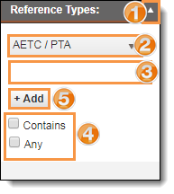
To Add a Reference
- Click the Reference Type dropdown list.
- Select a reference type from the dropdown list.
- Enter the value to search by.
- Select Contains to return results that match the provided value exactly or select Any to return all results that contain the provided value.
- Click Add.
- Repeat steps 2-5 to add any other reference criteria to the search.
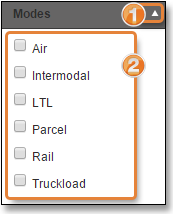
To Add a Mode Filter:
- Click the Modes dropdown list.
- Select one or more modes to use as a filter.
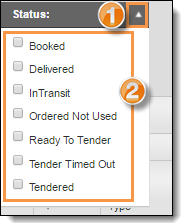
To Add a Status Filter:
- Click the Status dropdown list.
- Select one or more statuses to use as a filter.
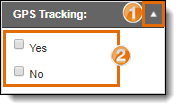
To Add a GPS Tracking Filter:
- Click the GPS Tracking dropdown list.
- Check Yes or No to use as a filter.
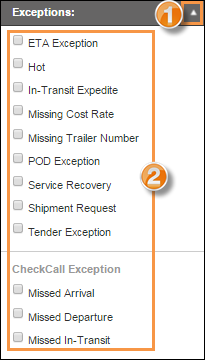
To Add an Exception Filter:
- Click the Exceptions dropdown list.
- Select one or more exception types to use as a filter.
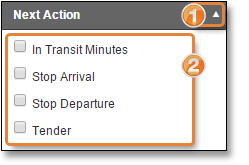
To Add a Next Action Filter:
- Click the Next Action dropdown list.
- Select one or more next actions to use as a filter.
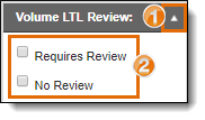
To Add a Volume LTL Review Filter:
- Click the Volume LTL Review dropdown list.
- Select one option to use as a filter.
Add a Type Filter:
When you search by type, you filter the results that Optimiz returns based on the provided search criteria. If you do not specify any search criteria, Optimiz finds all with the specified type.
To Add an Type Filter:
- Click the Type dropdown list.
- Select one or more types to use as a filter.
Select Number of Search Results
To improve speed, Optimiz returns only a limited number of search results. The number of results returned by a search can be selected from Results Count. Be aware that selecting a larger number of results can slow the speed of Optimiz for all users.
Run the Search
Run the search after the criteria and filters have been added.
To Run the Search:
- Click Search.

Result
Optimiz finds all matching results and displays them in the data grid.