Accept a Carrier Bid for an Expedite
Overview
After a customer has agreed to a quote for an expedite, you need to flag the Bid Request as Accepted through the QuoteConnect Expedite dashboard.
Prerequisites
Before you can flag a Bid Request as Accepted for an expedite through the QuoteConnect Expedite dashboard, you must have created and sent a Quote to the Customer. See Create a Customer Quote for an Expedite for details.
Process
To Accept a Carrier Bid for an Expedite:
- Access the Expedite dashboard. See QuoteConnect Expedite Dashboard for details.
- Click on the row containing the Spot Quote ID that you want to accept the bid for. (Don't click the Quote ID column, as this will open the Spot Quote Request Entry window.)
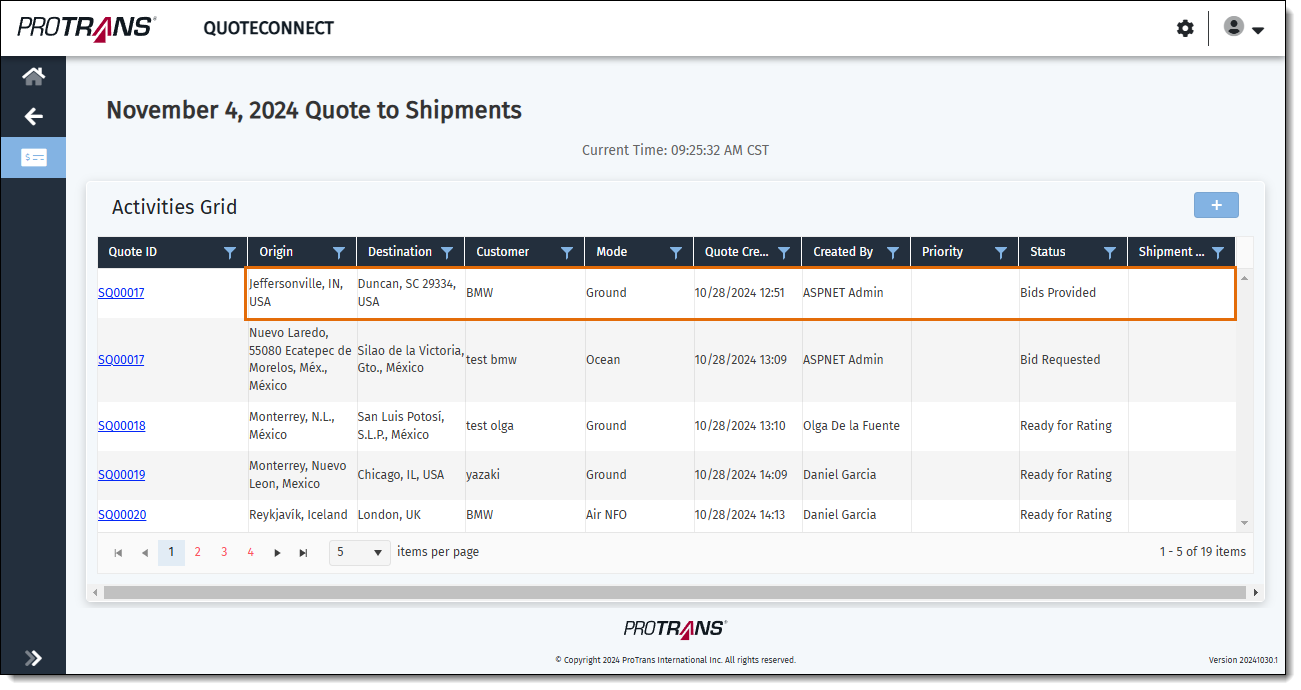
The Manage Bid window opens.
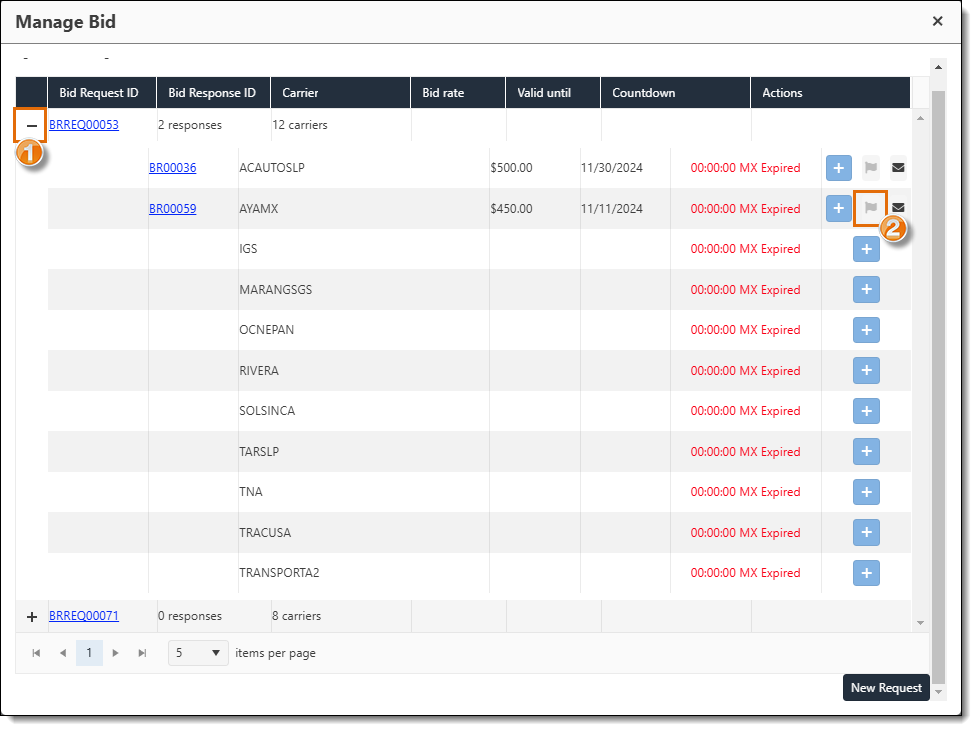
- Click the + icon next to the Bid Request ID that contains the carrier Bid Response you want to accept. A list of carriers who the bid was sent to opens.
- Click the Flag icon next to the Bid Response you want to accept.
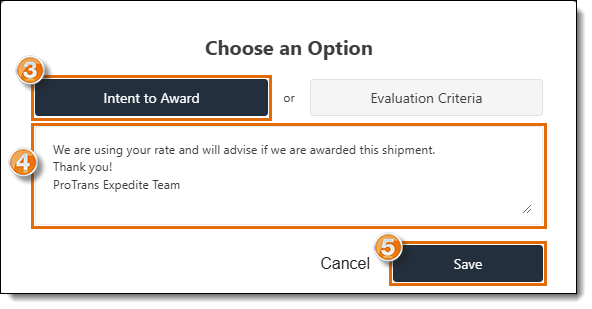
A pop-up window opens.
- Make sure Intent to Award is selected. The button will be blue if it is selected.
- Enter an acceptance message in the Notes field. Other notes can be added as well.
- Click Save.
The pop-up window will close and return to the Manage Bid screen. The flag icon will turn black to indicate that a carrier has been awarded the expedite.
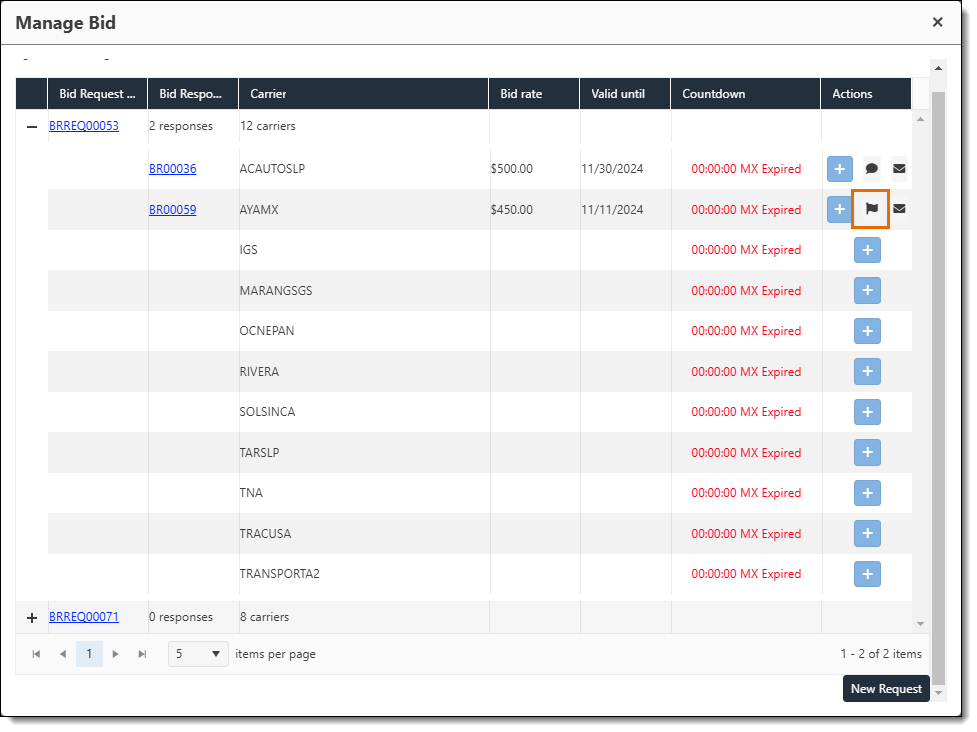
Result
The status of the Spot Quote will be updated to Bid Accepted.
Next Steps
Now that you have Accepted a Carrier Bid for an Expedite, you need to:
Related Topics
Now that you know more about Accepting a Carrier Bid for an Expedite, you may want to read more about: