QuoteConnect Expedite Dashboard
Overview
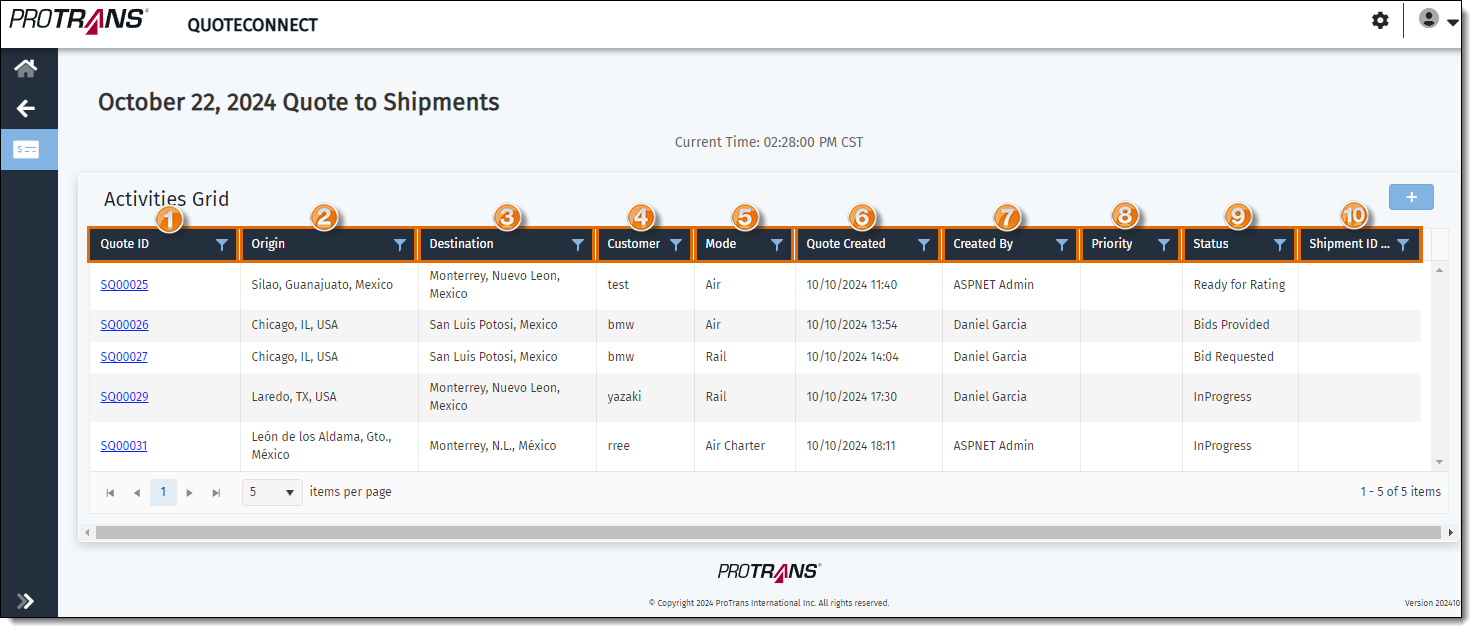
The QuoteConnect Expedite dashboard gives the Expedite team the ability to create, view, manage, and edit Spot Quotes for customer expedites. The QuoteConnect Expedite dashboard contains a grid that displays the details about Spot Quotes that have been created.
The grid displays the following information:
- Quote ID: The Spot Quote number for the quote. This number systematically generates when the quote is created and displays as a link. Click the link to see the details about the Spot Quote.
- Origin: Origin of the shipment.
- Destination: Destination of the shipment.
- Customer: Name of the customer account requesting the quote.
- Mode: The method of transportation for the shipment. (Ground, Air, Air Charter, Ocean, Rail, etc.)
- Quote Created: The date and time the quote was created.
- Created By: Name of the user who created the quote.
- Priority: Level of priority of the shipment.
- Status: Status of the quote.
- RFQ In Progess
- RFQ Submitted
- Bid Requested
- Bids Provided
- Ready for Rating
- Quote in Review
- Quote Sent
- Quote Accepted
- Quote Rejected
- Bid Accepted
- Bid Rejected
- Shipment Created
- Shipment ID: The Optimiz shipment number is displayed as a link, that when clicked will take the user to Shipment Management in Optimiz.
To Access the QuoteConnect Expedite Dashboard:
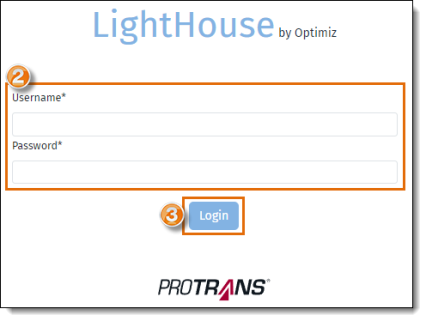
- Open https://quoteconnect.protrans.com in a web browser.
- Enter your OptimizUsername and Password.
- Click Login.
- Click the Expedite tile.
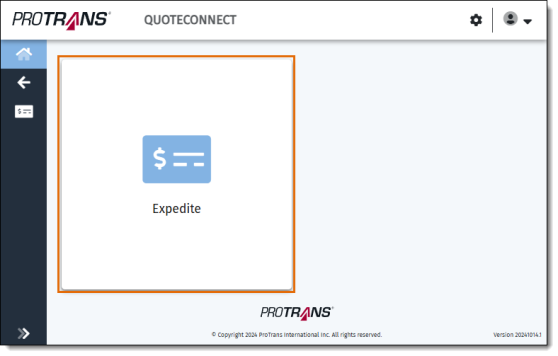
Result
The QuoteConnect Expedite dashboard opens
Related Topics
Now that you know more about the QuoteConnect Expedite dashboard, you may want to read more about: