Add a Bid Response from a Carrier
Overview
After a spot quote has been sent out for bid, carriers will send their bids to ProTrans. Sometimes carriers will provide their bid via email or over the phone instead of through QuoteConnect. You can manually add a Bid Response from a carrier for an expedite through the QuoteConnect Expedite dashboard.
Prerequisites
Before you can manually add a Bid Response from a carrier for an expedite through the QuoteConnect Expedite dashboard, you must send a spot quote out for bid. See Send a Spot Quote Out for Bid for details.
Process
To Add a Bid Response from a Carrier:
- Access the Expedite dashboard. See QuoteConnect Expedite Dashboard for details.
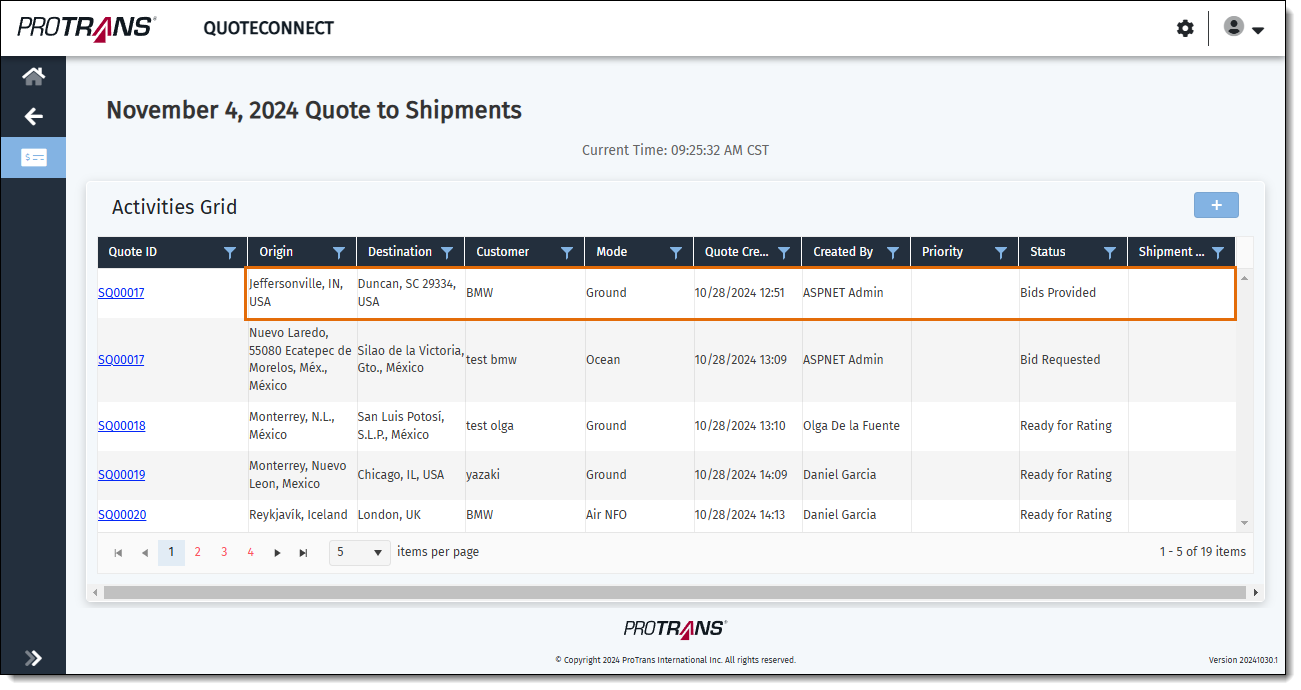
- Click on the row containing the Spot Quote ID that you want to add a Bid Response to. (Don't click the Quote ID column, as this will open the Spot Quote Request Entry window.)
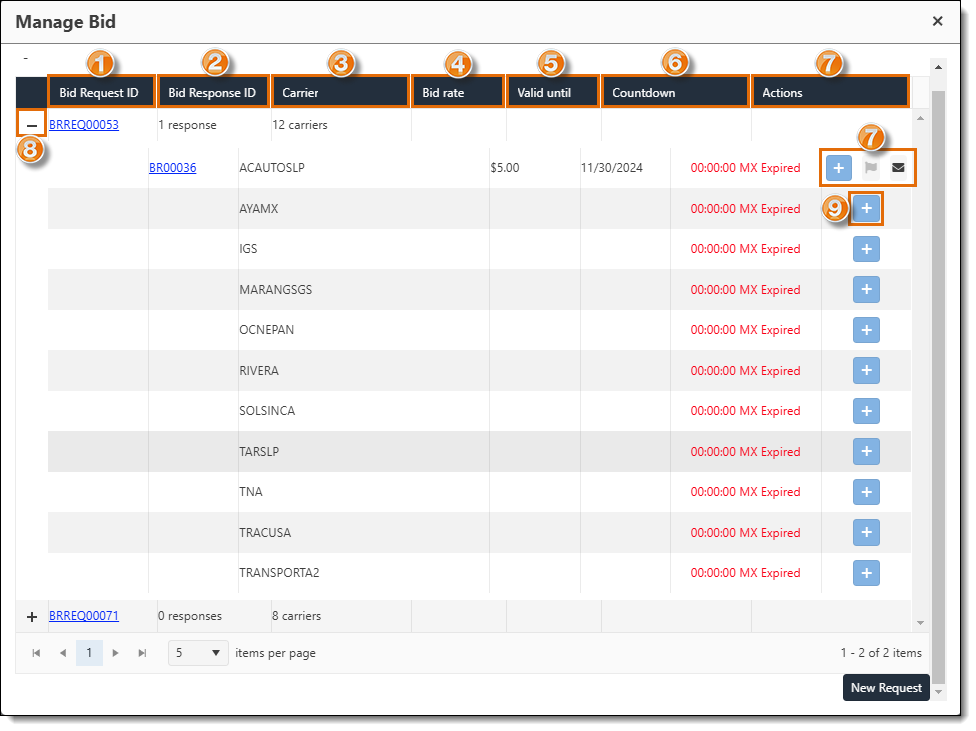
The Manage Bid window opens. The Manage Bids window contains information about the Spot Quote for an expedite that has been sent out for bid to carriers.
- Bid Request ID: The unique number used to identify a Spot Quote that has been sent out for bid.
- Bid Response ID: The unique number used to identify a carrier bid response to a Spot Quote.
- Carrier: The name of the carrier the Spot Quote was sent to. If the Spot Quote was sent to multiple carriers, this column will display how many carriers the bid was sent to.
- Bid Rate: The amount the carrier has bid to transport the expedite.
- Valid Until: The date and time the bid will no longer be valid.
- Countdown: The amount of time left to respond to a carrier bid.
- The Actions column contains the options to respond to a bid.
- The + icon allows you to add a response to a Bid Request.
- The Flag icon allows you to mark a Bid Response as "Intent to Award".
- The Envelope icon allows you to download a template that contains the bids received from carriers to send to the customer for their approval.
- Click the + icon next to the Bid Request ID that you want to add a Bid Response to. A list of carriers who the bid was sent to opens.
- Click the + icon in the row that contains the name of the carrier you want to add the Bid Response for.
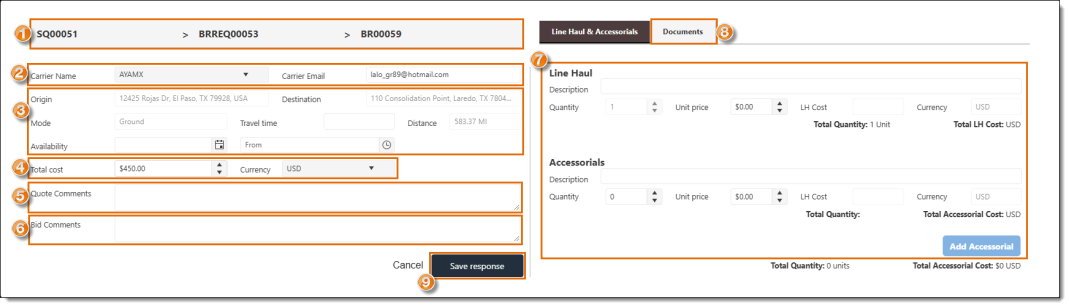
The Bid Response window opens and contains the details about the Bid Response.
- The Spot Quote ID, Bid Request ID, and Bid Response ID are displayed at the top of the window.
- The next section contains the name and contact email address of the carrier who you want to input the Bid Response for. Select a different carrier from the dropdown menu and/or edit the email address of the carrier if needed.
- Next, are the details about the expedite, including the origin and destination of the shipment, the mode of transportation, distance, travel time, and availability of the shipment. Edit the travel time and the availability of the shipment as needed.
- Add the bid amount from the carrier in the Total Cost field.
- Enter any notes about the quote in the Quote Comments field.
- Enter any notes about the bid in the Bid Comments field.
- Enter any Line Haul or Accessorial charges on the Line Haul & Accessorials tab if needed, then click Add Accessorial if you add any Line Haul or Accessorial charges.
- Click the Documents tab to upload any documents, if needed.
- After you've made all the edits needed, click Save Response.
A banner will appear indicating the Bid Response was saved successfully.

Result
The Bid Request will be updated in the QuoteConnect Expedite dashboard.
Next Steps
Now that you have Added a Bid Response from a Carrier, you need to:
Related Topics
Now that you know more about Adding a Bid Response from a Carrier, you may want to read more about: