Send a Spot Quote Out for Bid
Overview
You can send a Spot Quote for an expedite out for bid to carriers through the QuoteConnect Expedite dashboard.
Prerequisites
Before you can send a Spot Quote out for bid, you must create a Spot Quote. See Create a Spot Quote for details.
If you have sent a Spot Quote out for bid at least once already, jump down the page to: To Send a Spot Quote Out for Bid Again:
Process
To Send a Spot Quote Out for Bid:
- Access the QuoteConnect Expedite dashboard. See QuoteConnect Expedite Dashboard for details.
- Identify the Spot Quote ID you want to send out for bid.
- Click the Spot Quote ID link.
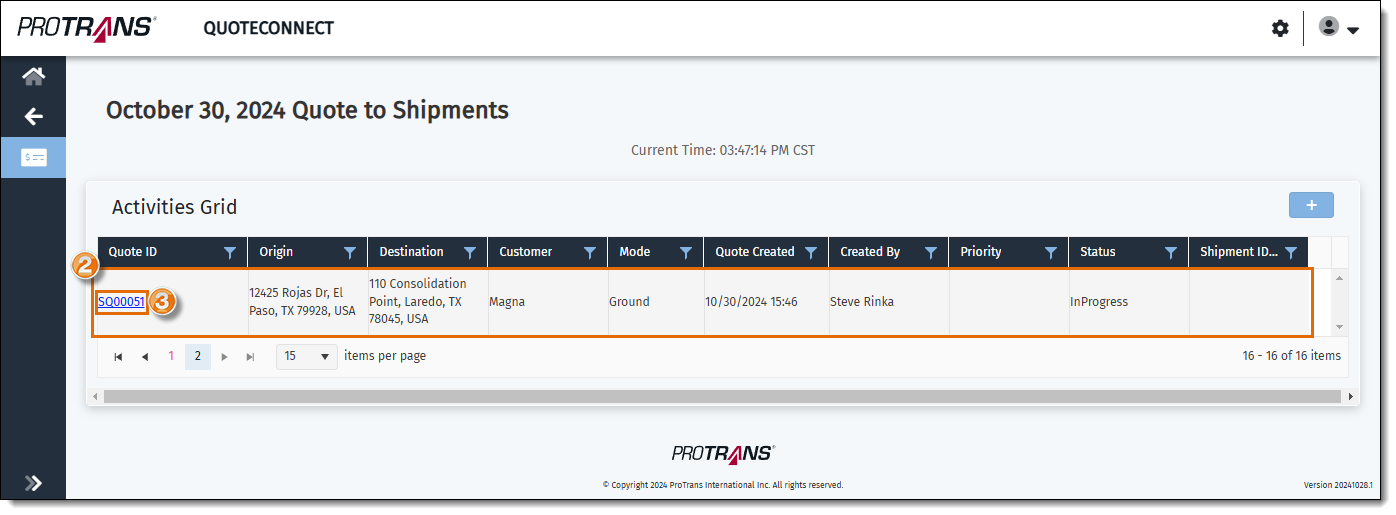
The Spot Quote Request Entry window opens.
- Review the details about the Spot Quote to make sure they are correct and make updates if needed.
- Click Save Request.
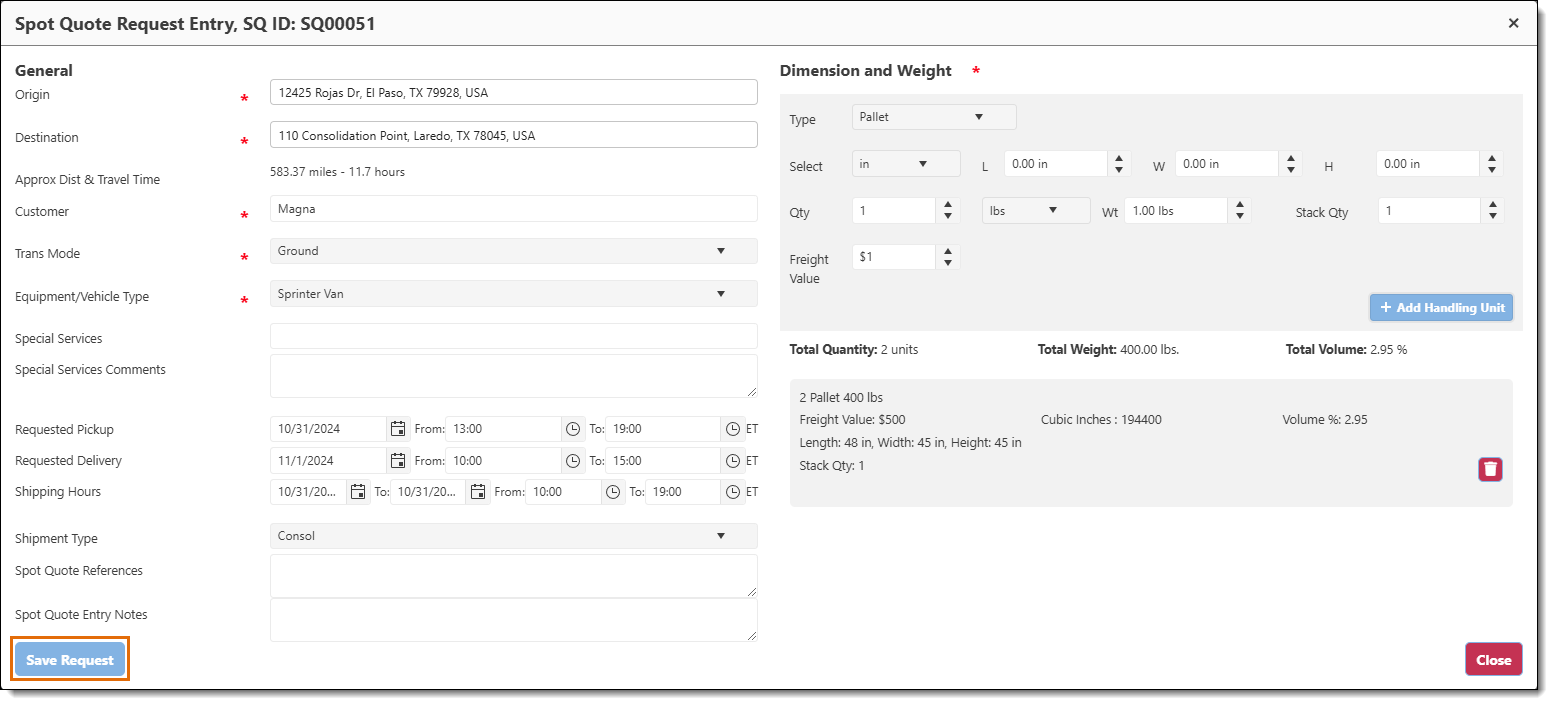
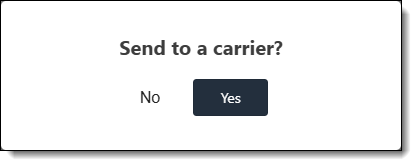
A banner appears indicating the spot quote has been saved.

A pop-up box appears asking if you want to send the request to a carrier. Click Yes to continue.
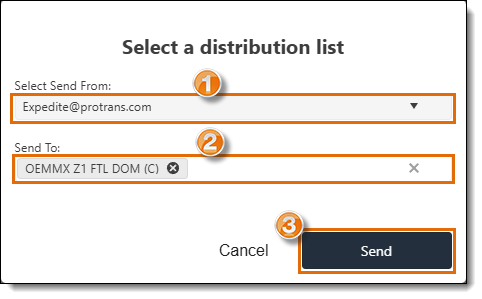
Another pop-up box appears.
- Select the email address you want to use to send the Spot Quote from the Select Send From dropdown menu.
- Select the email distribution list(s) where you want to send the Spot Quote from the Send To dropdown menu. If you are not sure which distribution list(s) to use, check with your supervisor.
- Click Send.
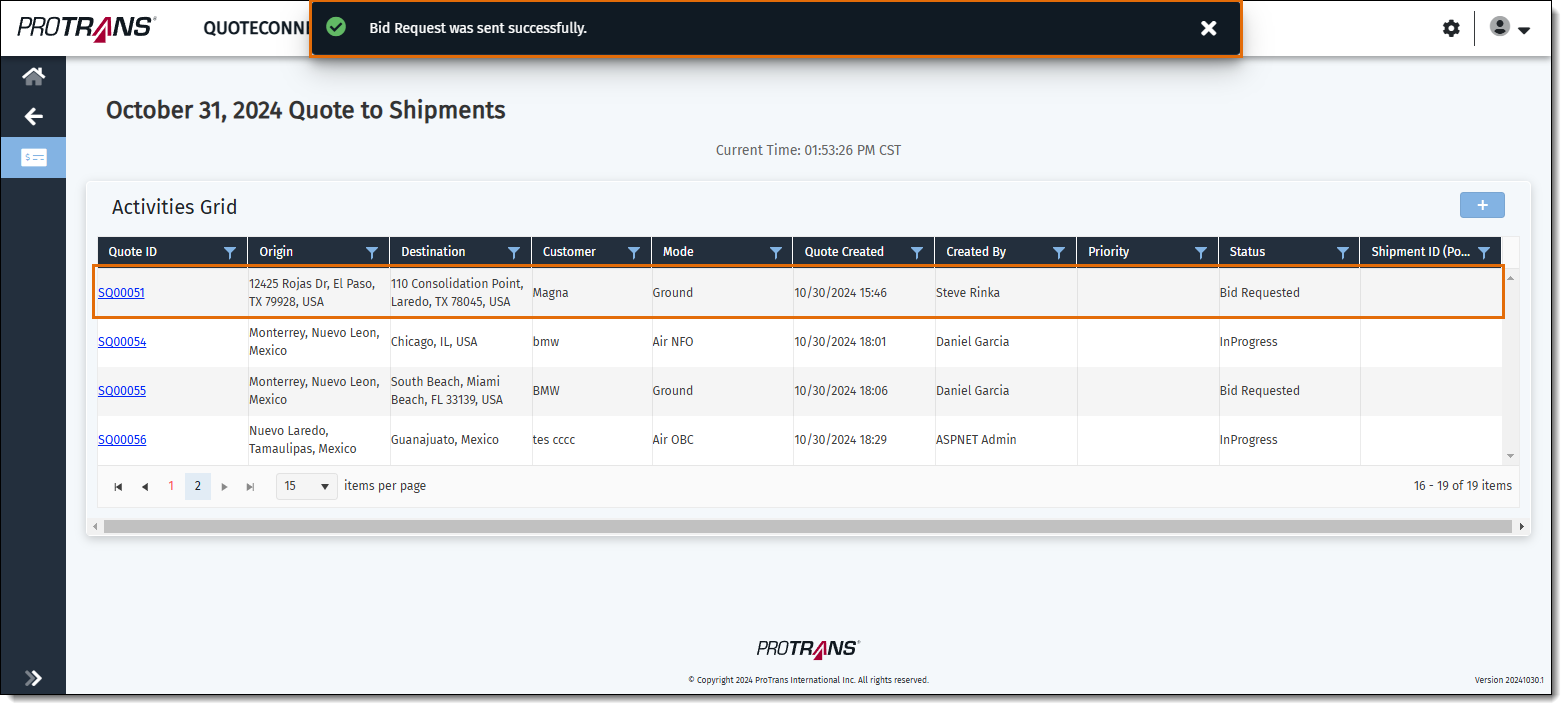
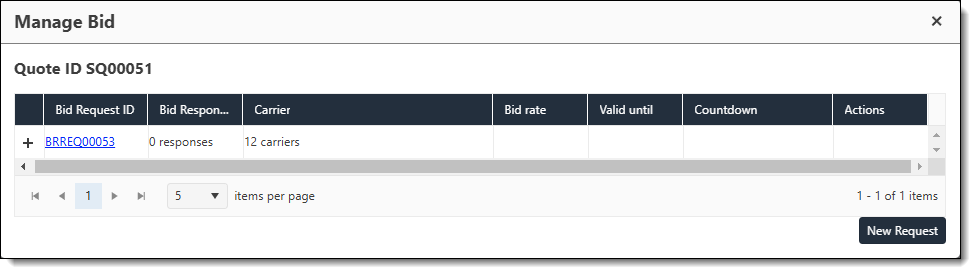
The pop-up box will close, a banner will appear indicating the Spot Quote was successfully sent, and the status of the quote will change to Bid Requested in the grid. A Bid Request ID (a unique number used to identify the request) will also be created when the Spot Quote is sent out for bid. Click on the row containing the Spot Quote ID you submitted to view the Bid Request ID. (Don't click the Quote ID column, as this will reopen the Spot Quote Request Entry window.)
To Send a Spot Quote Out for Bid Again:
- Click on the row containing the Spot Quote ID previously sent out to bid. (Don't click the Quote ID link, as this will open the Spot Quote Request Entry window.)
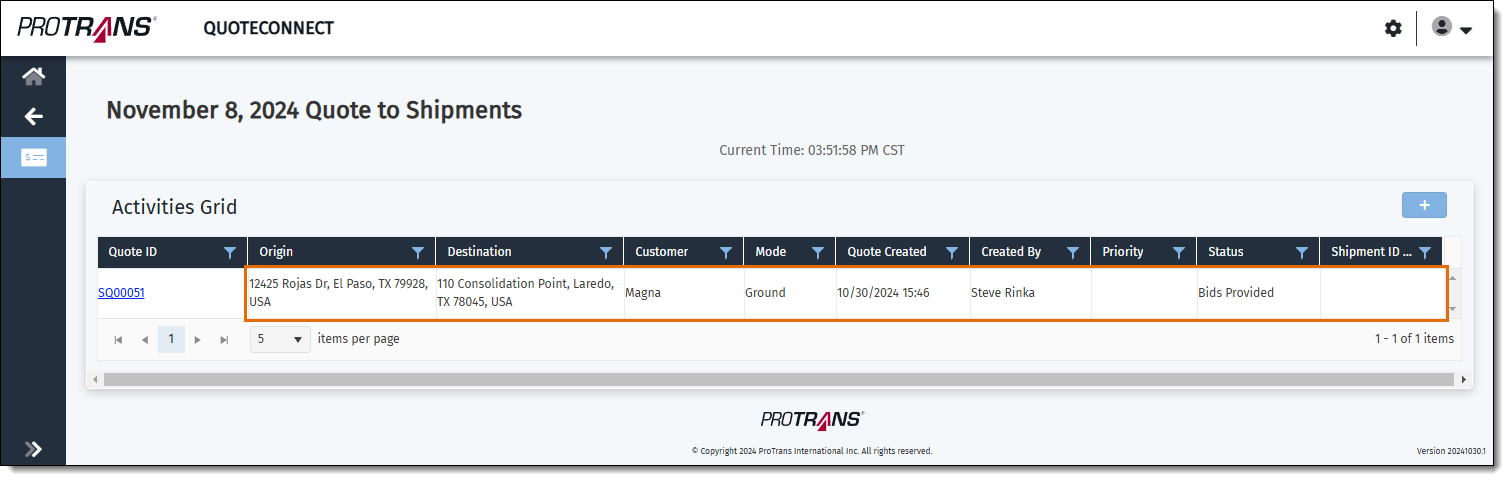
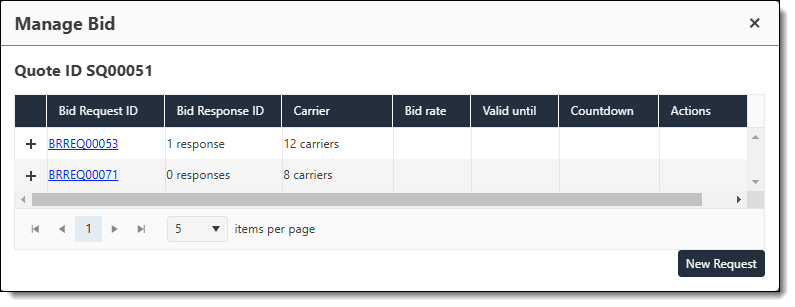
The Manage Bid window will open.
- Click New Request.
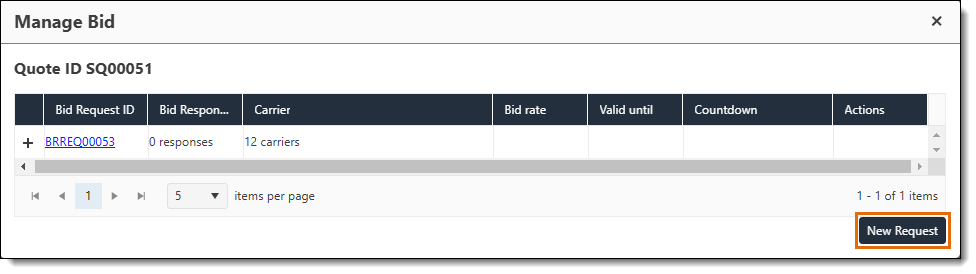
Another pop-up box appears.
- Select the email address you want to use to send the Spot Quote from the Select Send From dropdown menu.
- Select the email distribution list(s) where you want to send the Spot Quote from the Send To dropdown menu. If you are not sure which distribution list(s) to use, check with your supervisor.
- Click Send.
A banner will appear indicating the Spot Quote was successfully sent.

The new bid request will be created and show underneath the existing bid requests in the grid in the Manage Bid window.
Next Steps
Now that you have sent a Spot Quote out for bid, you may need to: