Print Measurement Report
Overview
Measurement reports can be printed from the Confirmation & Labeling tile.
When Should I Print a Measurement Report?
A Measurement Report should be printed when performing the shipment confirmation process. The Measurement Report is used to compare the information from Optimiz to the freight on the dock.
Process
To Print a Measurement Report:
- Access the Confirmation & Labeling tile. See Access Confirmation & Labeling for details.
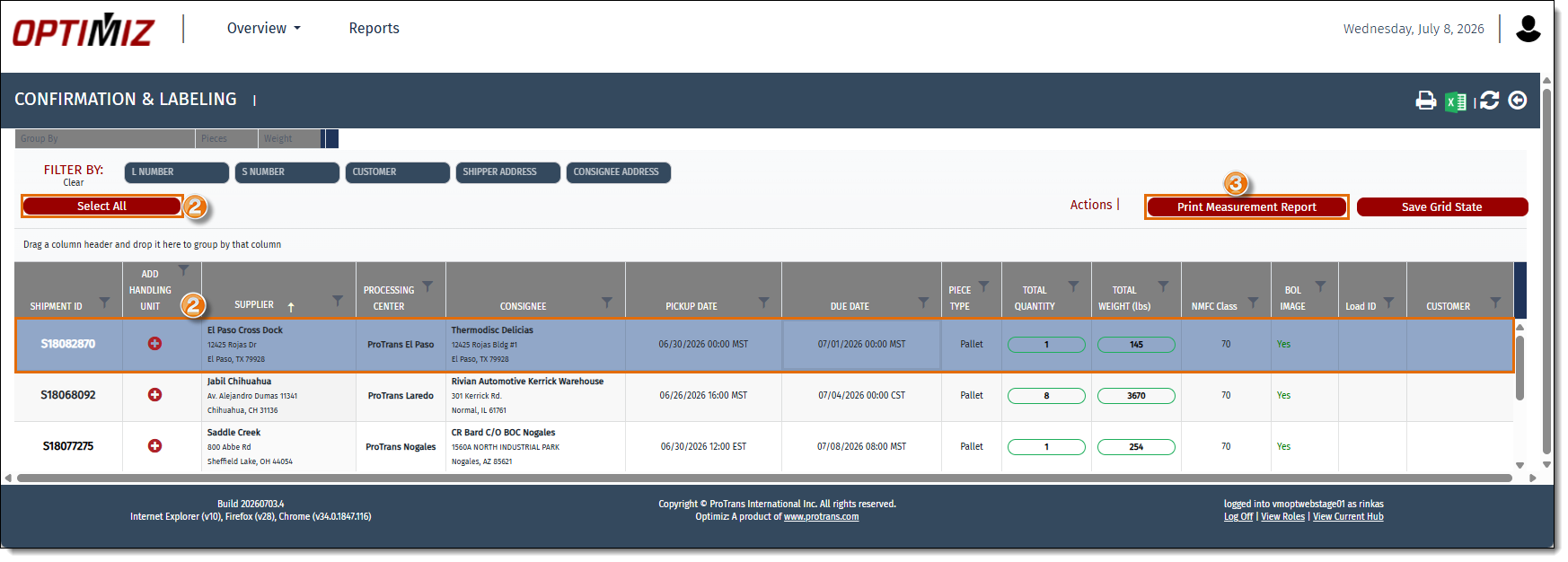
- Select the shipment or shipments that should appear on the measurement report. To select multiple shipments, press the CTRL key and select each shipment. To select several shipments that are adjacent to each other, click the first shipment and, while pressing the Shift key on the keyboard, click the last shipment. To select all the shipments in the grid, click Select All.
- Click Print Measurement Report.
- Select Measurement Report to print the measurement report. Select Load Out Sheet to print the load out sheet.
- Click Print Preview.
- Click OK.

- The requested measurement report will open in a separate page. Use the navigation and print tool bar to view and print the document.

Result
Once printed, the Measurement Report can be used to physically verify the dock's inventory against Optimiz.