Confirm a Shipment and Print Labels
Overview
Handling units refer to the physical freight for shipments in Optimiz. Handling unit dimensions are used in trailer planning to calculate the optimum utilization of equipment. The Confirmation & Labeling tile allows dock users to edit the dimensions for the handling units of shipments and print the pallet labels to apply to the freight.
Process
To Confirm a Shipment:
- Access the Confirmation & Labeling tile. See Access Confirmation & Labeling for details.
- Click the + icon next to the shipment you need to confirm.
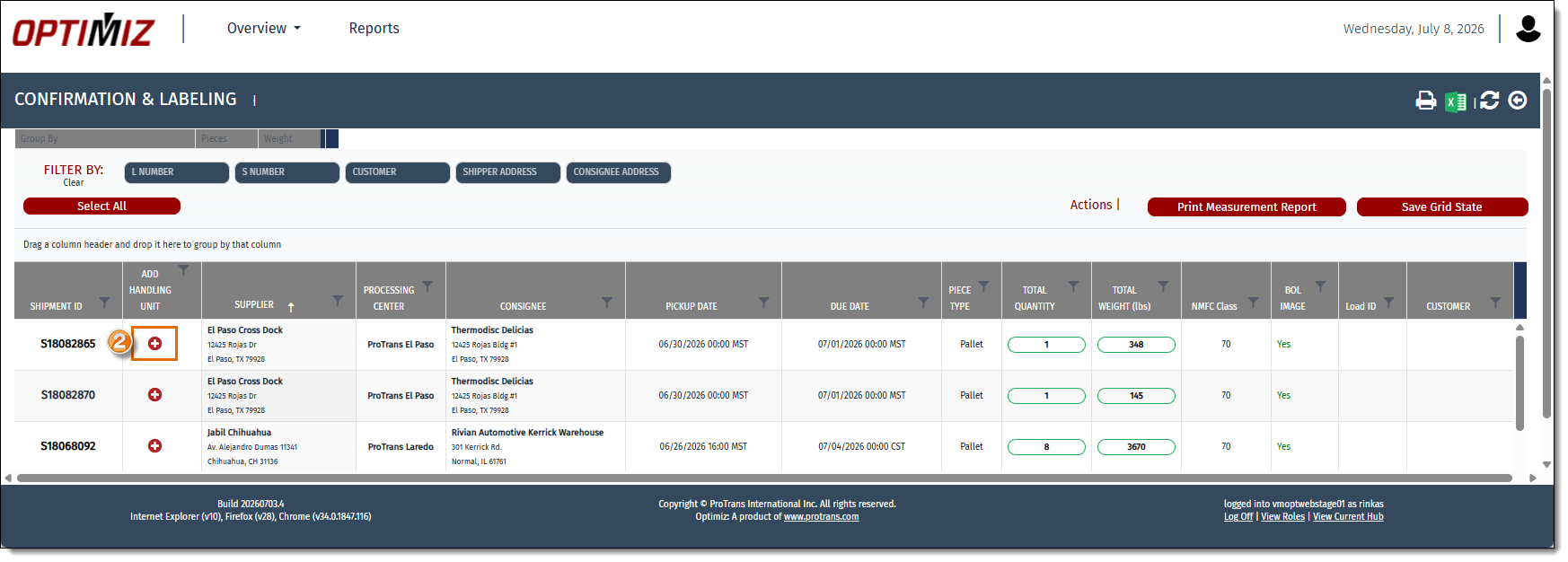
The confirmation details window opens.
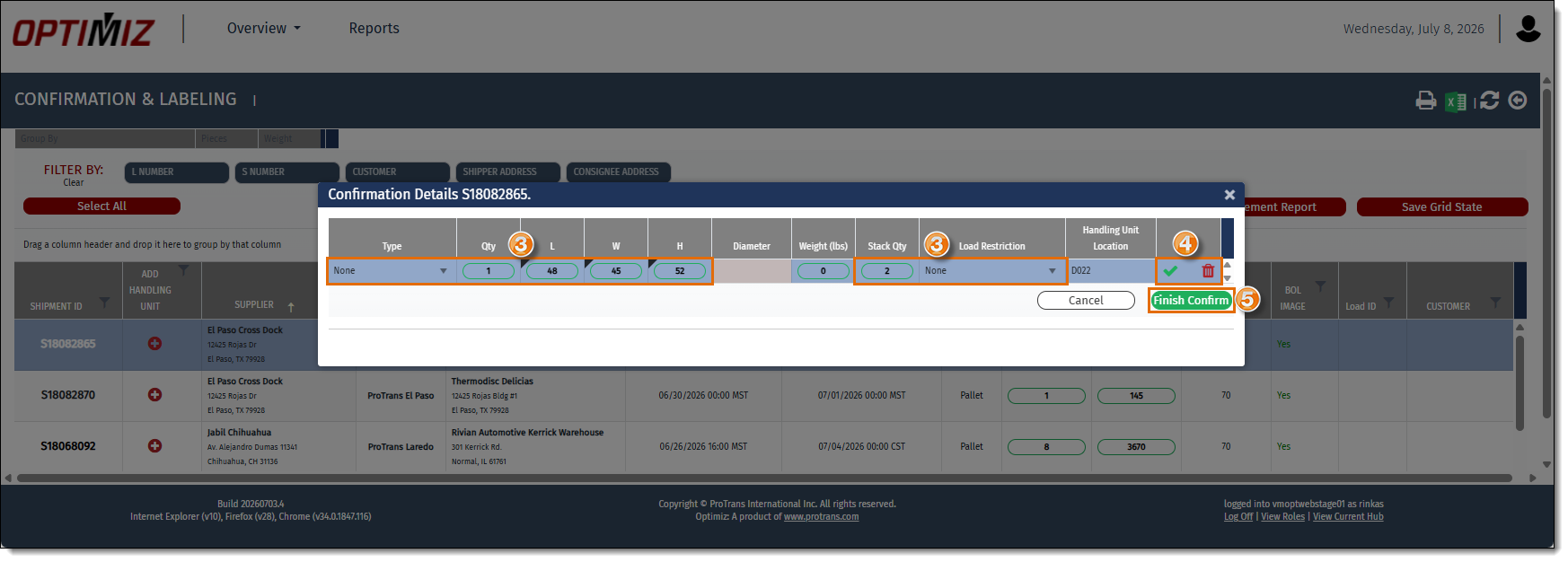
- Add the information about the physical freight. You can edit the following fields: Type, Quantity, Length, Width, Height, Stack Quantity, and Load Restriction.
- Click the Green Check icon to validate the handling unit or click the Red Trash icon to delete the handling unit.
- Repeat steps 3 and 4 for any additional handling units to be confirmed for the shipment. The number of handling units must match the total quantity of the shipment. Additional lines will appear as needed.
- Click Finish Confirm to confirm the shipment.
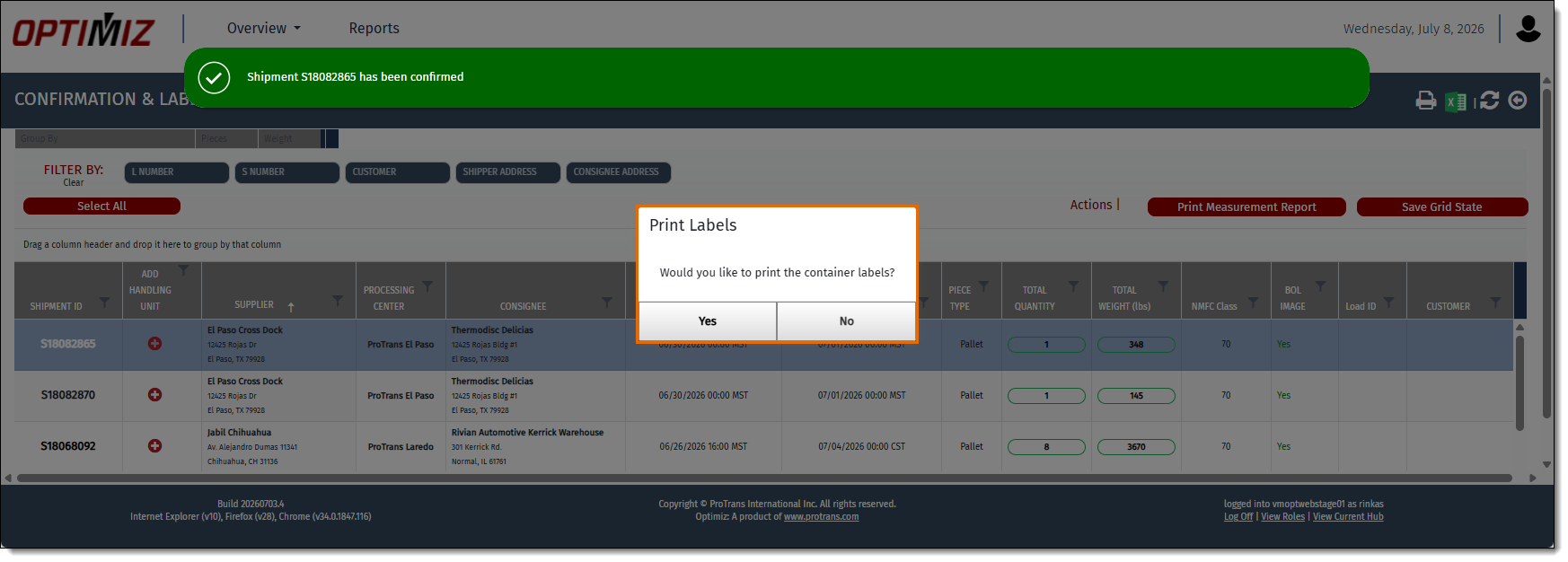
A pop-up window will open asking if you want to print the container labels.
- Click Yes to print the container labels or click No to continue without printing.
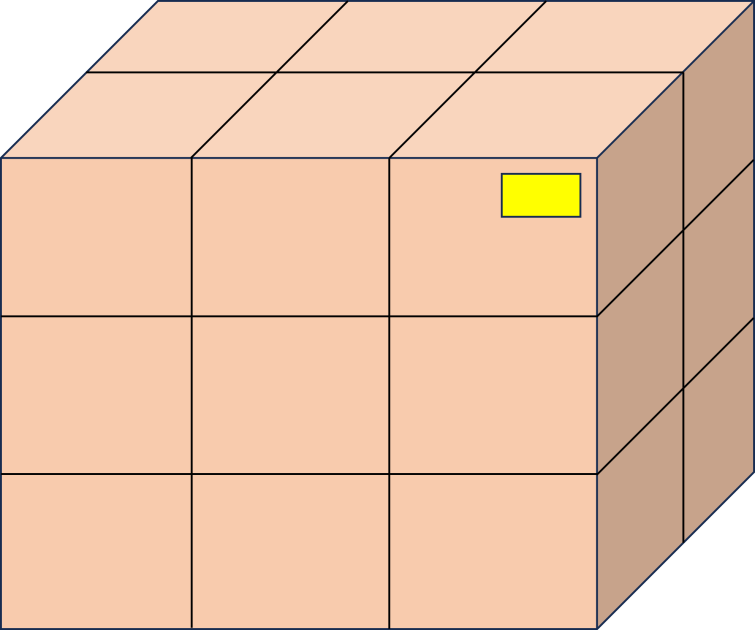
- After printing the labels, apply one label to the front of each handling unit as close to the top right-hand corner as possible.
Result
The handling unit details have been updated, the pallet labels have been created, and the status of the shipment in Optimiz is updated to Confirmed.