Add References with Images or Files
Objective
Users will be able to add references to a shipment from the Shipment Management search grid. References and images can also be added to a shipment from the Shipment Edit screen. See Edit a Shipment for details.
Talking Points
Overview
Users can attach images or other files to certain reference types on existing shipments. This allows all relevant information relating to a shipment or claim to be stored in a single location.
The Attach File button is disabled for reference types that do not allow the attachment of files. Only specific file types can be added, including Word documents, Excel spreadsheets, PDFs, email messages, and images.
Prerequisites
- The shipment must already exist. Images and files cannot be attached to references during the shipment entry process. Save the shipment before attaching images or files to a reference.
Process
To Add a Shipment Reference:
- Search for the shipment. See Search for Shipments for details.
- Click View Documents/Refs for the selected shipment.

The View Images/Refs window opens, listing the references associated to the shipment.
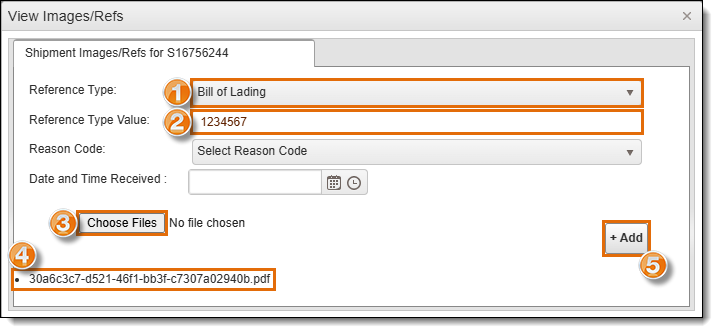
- Select the Reference Type.
- Enter the Reference Type Value.
- Click Choose Files and select the file from your computer.
- Once a file or image is uploaded, it will appear underneath to the Choose Files button.
- Click Add to save the Reference Type information and upload any selected documents.
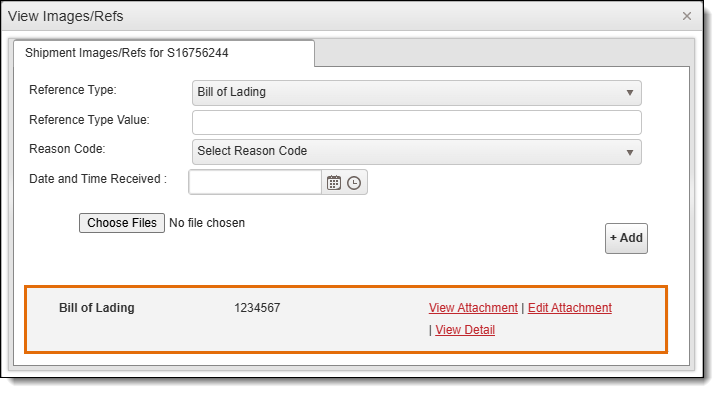
- The reference added will appear below the Reference Type Value field.
- Follow steps 1-5 to add more references as needed.
Result
The references have been added to the shipment with the selected image or file attached.