Set Transportation Mode, Shipment Type, and Service Charge
Overview
Default Transportation Modes (Transmodes), Shipment Types, Service Charge, and Tender View may be set at all levels of the Customer Hierarchy. The Transmode and Shipment Type fields are required. The Shipment Type list will automatically display options relevant to the type of Transmode selected. The Service Charge field is optional and displays all available types of Service Charges. The Tender View is also optional, and will display the options for the types of rates that will be visible on the customer's load tenders. If a Tender View is not selected, Optimiz's default behavior is Base Rate Only. The settings used during Shipment Entry are the ones set at the most specific level for that customer/load. Any Tender View setting in the Hierarchy will be overriden by settings in the Carrier entity.
Example: If general defaults are set at the Customer level but there is a transmode/shipment type exception set at the Location level for a ShipTo, the default set for the ShipTo will be used in Shipment Entry for transactions involving that ShipTo.
Available Transmodes are:
- Truckload
- LTL
- Intermodal
- Rail
- Air
- Parcel
Available Shipment Types are:
- Consol
- Direct
- Cross Dock
Available Service Charges are:
- Attempt
- Border Crossing
- CAF (Currency Adj Factor)
- Consol Linehaul
- Consol Pickup
- Corrected BOL
- Cross Dock
- Deadhead Miles
- Dedicated Linehaul
- Delivery
- Detention
- Expedite
- Fuel Advance
- HazMat
- Inbond
- IVA 16%
- IVA Retenido 4%
- Labor
- LH Fuel Surcharge
- LTL Fuel Surcharge
- Management Fee
- Mexican Linehaul
- Milkrun
- Misc (Non-Transportation)
- Misc Transportation
- No Charge
- Parcel Move
- Point to Point
- Quick Pay
- Reweigh Fee
- Stop Off
- Team Service
- Transaction Fee (3PL)
- Unplanned Air
- Unplanned Ground
- US Brokerage Custom Est Duties
- Vehicle Ordered Not Used
- Warehousing
Available Tender Views are:
- Base Rate Only
- All In Rate
- No Rate
When Should I Set Transportation Mode, Shipment Type, and Service Charge Defaults?
When a specific transmode/shipment type combination is used frequently for a specific origin and destination pair and can be set to auto-populate. The Service Charge setting is optional; however it is also set when used frequently with the transmode and shipment type combination.
Example
Metal Matic supplies Thyssenkrupp's plant in Middletown, Ohio, on a weekly basis. The transmode type is LTL and the shipment type is direct for 98% of their shipments. The transmode and shipment type can be set as a default at the Location level of the customer hierarchy under the Thyssenkrupp ShipFrom entity.
Prerequisites
Before the Transportation Mode and Shipment Type can be set:
- The ShipFrom and ShipTo entities must be associated in the customer hierarchy. See Create the Customer Hierarchy for New Customers.
Process
To Set the Transmode/Shipment Type:
- Open the Customer Hierarchy. See Access the Customer Hierarchy.
- Click on the wrench next to the entity at the appropriate level.
- Click Mode/Type/Service.
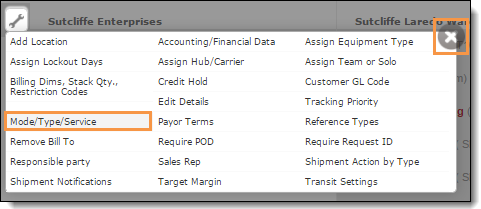
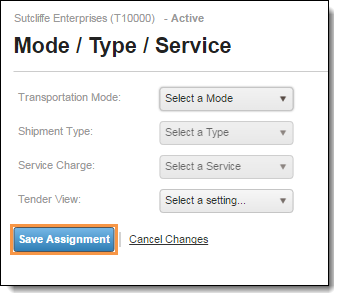
The Mode/Type/Service dialog box displays.
- Select a Transportation Mode from the dropdown list (required).
- Select a Shipment Type from the dropdown list; options display according to the Trans mode selected (required).
- Select a Service Charge from the dropdown list as needed (optional).
- Select a Tender View from the dropdown list as needed (optional).
- Click Save Assignment to save, or Cancel Changes to discard.
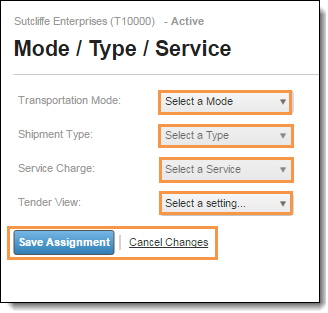
- Click the X in the upper-right corner to close the window.
To Edit the Transmode/Shipment Type:
- Open the Customer Hierarchy. See Access the Customer Hierarchy.
- Click on the wrench next to the entity.
- Click Mode/Type/Service.
- Changes may be made to the Trans Mode, Shipment Type, Service Charge, or Tender View.
- Click Save Assignment to save, or Cancel Changes to discard.
To Delete Mode/Type/Service Settings:
- Open the Customer Hierarchy. See Access the Customer Hierarchy.
- Click on the wrench next to the entity.
- Click Mode/Type/Service.
- Click the Transportation Mode dropdown.
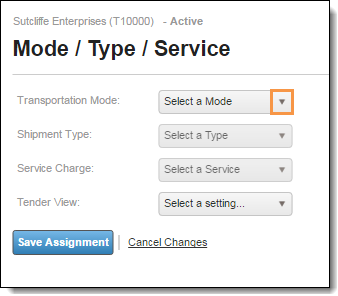
- Click Select a Mode.
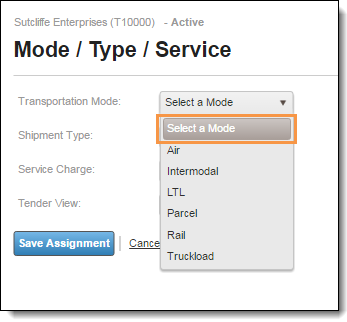
The settings clear. The Tender View setting will need cleared separately.
- Click Save Assignment to save changes.
Result
The transportation mode, shipment type, and service charge is set for that entity and level of the customer hierarchy.