Adding Reference Documents

Overview
Users can view, add, and remove additional reference documents, like Bills of Lading, pickup numbers, Complemento Carta Porte documents, etc. for existing shipments from the Tracking page. Any items included as a reference are viewable to all relevant users, including the customer, supplier, carrier, and ProTrans employees.
Process
To Add or Edit a Shipment Reference:
- Click the Needs Attention filter, or search for the shipment that needs the reference added. See Tracking Shipments for more details.
- Click the link in the Required References/Attachments column. The link displays two sets of numbers in a #/# format, (e.g. 1/4). The first set of numbers represents the number of references (e.g. pickup number, AETC number, order number, etc.) assigned to the shipment and the number of references that are required to be added to the shipment. The second set of numbers represents the number of attachments assigned to the shipment and the number of attachments that are required to be uploaded to the shipment.
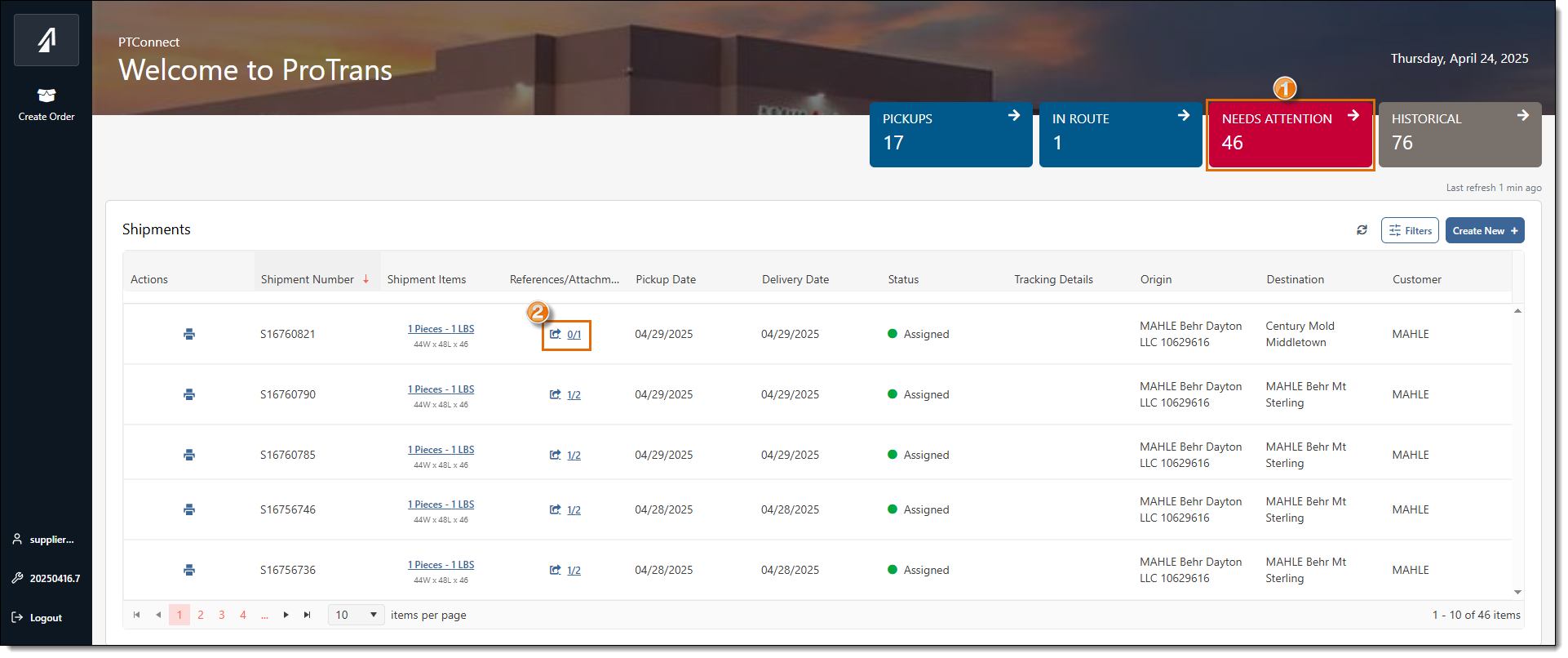
The References/Attachments window will open.
- References that are required, but missing, will display the words Required in red, and Missing Value next to them.
- Click New Reference or click the Edit icon next to the reference you want to add or edit.
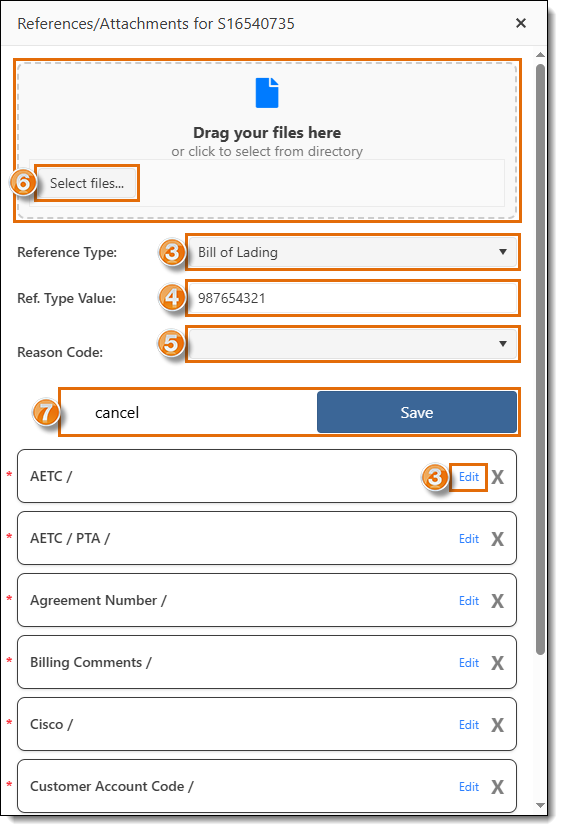
A new panel will open in the window indicating either Add Reference or New Reference depending on if you are adding or editing a reference.
- Enter the reference value in the Ref. Type Value field.
- Select the type of reference you are adding from the Reference Type dropdown.
- Select a Reason Code from the dropdown menu, if needed.
- To upload a document for the shipment reference, you can drag the file to the window, or click in the upload box to select a file from your computer.
- Click Save to upload and save the reference, or Cancel to cancel changes.
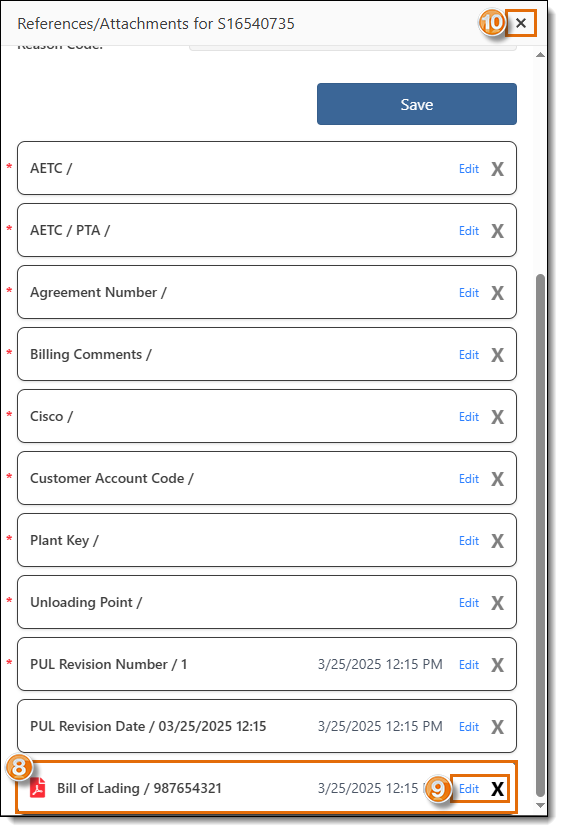
- After you save the reference, it is added to the list of references. You may need to scroll down to view it.
- If you added an attachment, a green Paperwork icon will appear. Click the icon to download the attachment.
- Edit a reference by clicking the Edit pencil, or click the Trash icon to remove a reference.
- After you finish adding or editing references, click the X to close the window.
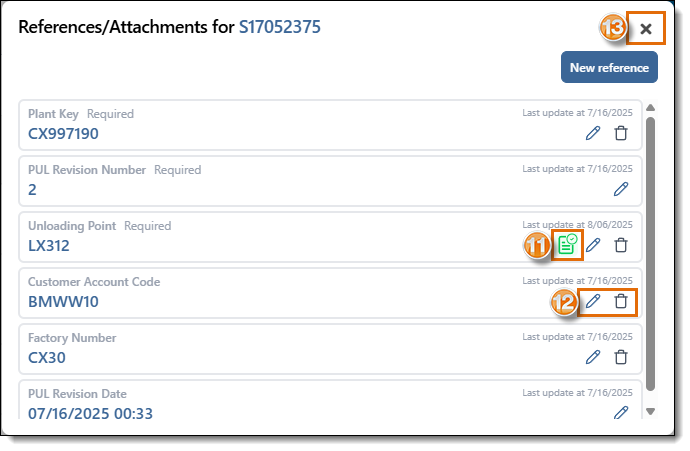
Result
The reference is saved and immediately available in PTConnect and Optimiz.
Related Topics
Now that you know more about updating shipment references, you may want to read more about: