Audit a Shipment
Overview
Shipment audit enables Optimiz operations users to review the historical changes for a shipment including changes in status, OD pair, customer, BillTo and more. You can also take a look at the historical changes for handling unit details and reference details.
When Should I Audit a Shipment?
Auditing a shipment can be useful when you are trying to diagnose why Optimiz did something you didn't expect. For example, if Optimiz tendered the load immediately instead of waiting for the day before pickup, you could use shipment audit to see what the pickup and delivery dates and times were and, if they were changed, see information about the person who made the change along with the original information and changed data.
Prerequisites
Before you can audit a shipment, you must know the Shipment ID. The best way to find the Shipment ID is to search for the shipment in either Shipment Management or Shipment History. Then, copy the Shipment ID to the clipboard and paste it in the Shipment ID field as described in step 3 of the process outlined later in this topic.
Process
To Audit a Shipment
- Hover your cursor over Shipments in the menu bar.
- Click Shipment Audit.
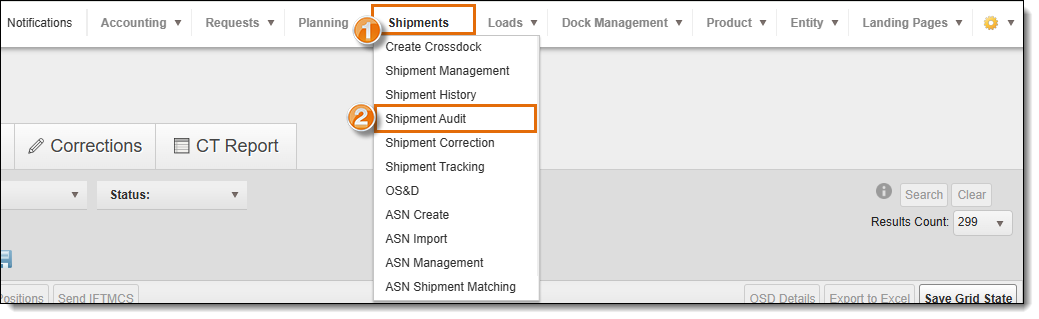
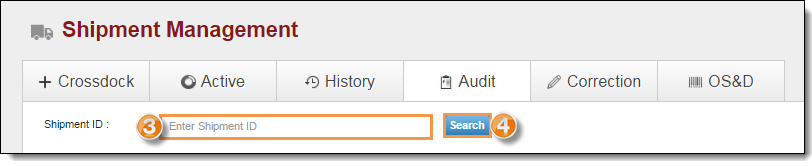
The Shipment Audit page opens.
- Type the Shipment ID in the Shipment ID field.
- Click Search.
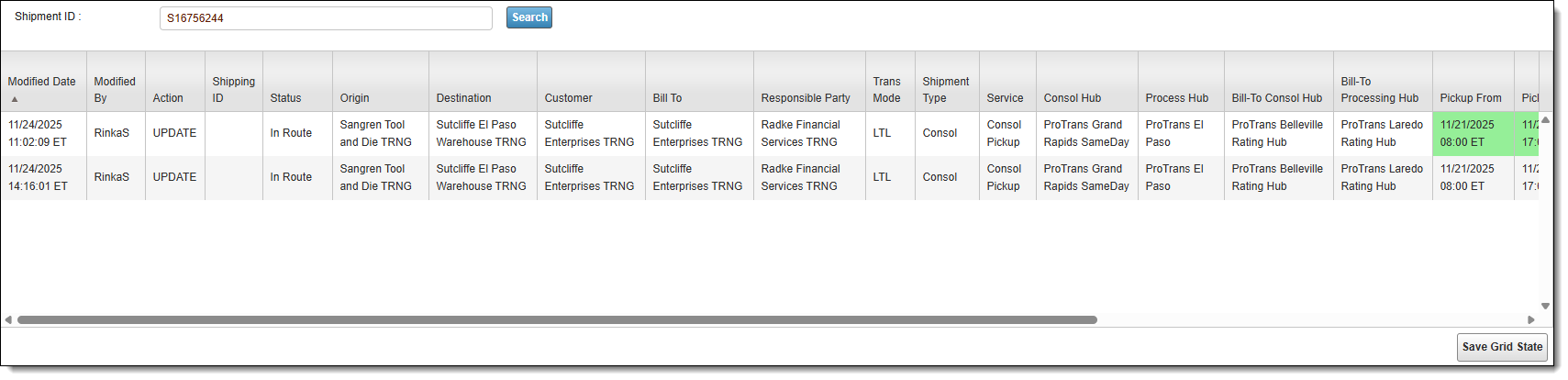
The data grid populates with the basic details about the shipment, and the changes made, including the Modified Date, Modified By, Action, Shipping ID, Status, Origin, Destination, Customer, Bill To, Responsible Party, Trans Mode, Shipment Type, Service, Consol Hub, Process Hub, Bill-To Consol Hub, Bill-To Processing Hub, Pickup From, Pickup To, Delivery From, Delivery To, Delivery Change Reason, Payor Term Type, Correction Delivery From, and Correction Delivery To.
Other Aspects of the Shipment to Audit
Shipment Audit provides details about the shipment you may audit after performing steps 1-4 in this process:
- Basic Shipment Modified Date, Modified By,
- Handling Unit Details: NMFC Class, Density Class, Freight Value, Stack Quantity, Type, Length, Width, Height, Quantity, Weight, Modified By, Modified Date.
- Reference Details: Reference Type, Reference Type Value, Action, Modified By, Modified Date.
- Shipment Rate Audit - Charge Rate Details: Seq#, Service, Rate From, Rate To, Location, Miles, Rate Qty, Rate Qty Type, Rate, Discount, Net Charge, Rate Class, Currency, Billing Comment, Tracking Priority, Contract ID, GL Code, Modified By, Modified Date, Action.
- Shipment Rate Audit - Cost Rate Details: Load ID, Seq#, Service, Rate From, Rate To, Carrier/Vendor, Daily Rate, Miles, Paid, Rate Qty, Rate Qty Type, Rate, Discount, Net Charge, Rate Class, Currency, Invoice, Cost Comment, Tracking Priority, Modified By, Modified Date, Action.
- Load Details: Load ID, Action, Location, Modified By, Modified Date.
- Special Services Details: Special Service, Action, Modified By, Modified Date, In Bond Number, In Bond Status, UN Number, Proper Shipping Name, Hazard Class, Packing Group, NMFC Class, Emergency Contact, Quarantine Reason.
- Dock Process Audit: Action, Date Time, User Name, Pieces, Weight, Original Class, New Class Set, No Class Flag, User Default Hub.
To display these additional data, click the button next to the heading.
Interpret the Audit Tables
Shipment Audit tracks every change that occurs to audited data fields and displays them in the order a change occurred. To make it easier to determine what changed, use these guidelines:
- Cell backgrounds are highlighted green for added or changed data.
- Cell backgrounds are highlighted red for deleted data.