View Load Information
Overview
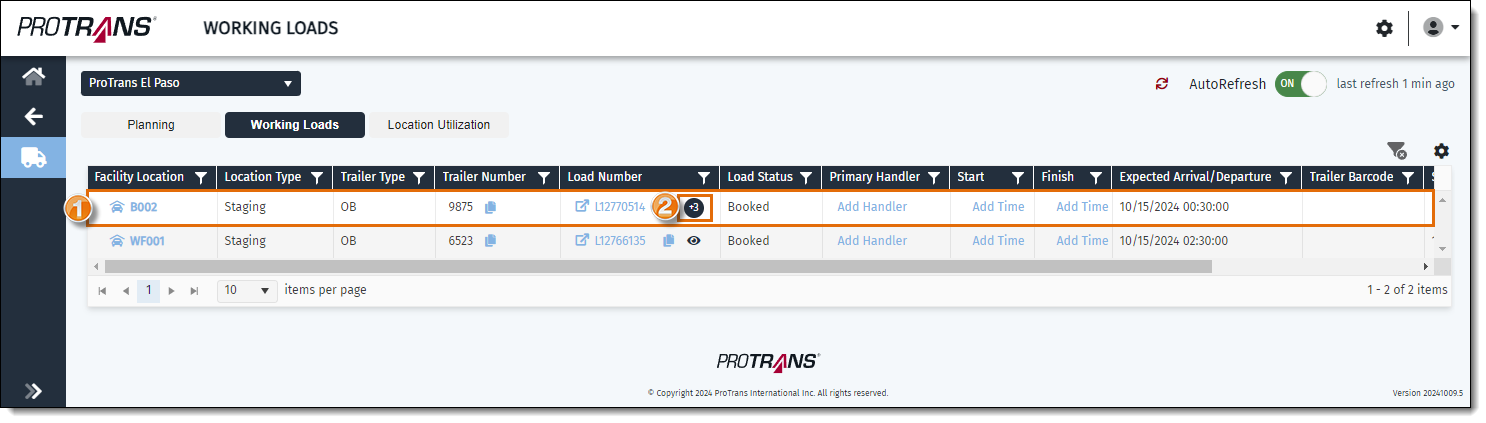
Users can view details about a load from the Working Loads screen.
Process
To View Load Information for a load on the Working Loads screen:
- Identify the load you want to view information about in the grid.
- Click the Loads Overview helper icon. An eyeball icon indicates there is one Optimiz load number assigned to the trailer. A circle with number inside indicates the trailer is an LTL trailer with multiple Optimiz load numbers assigned to the trailer.
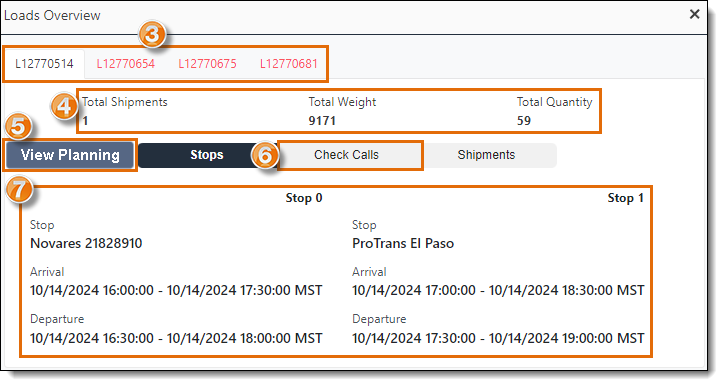
The Load Overview window opens on the Stops tab.
- If the selected trailer is an LTL trailer containing multiple loads, the top of the window will display a tab for each load on the trailer.
- The next section displays the total number of shipments, total weight, and total quantity of handling units for the selected load.
- The Stops tab displays information about the stops on the load.
- Click the View Planning button to open the selected load in Optimiz in Dock Planning.
- Click the Check Calls tab to view check call information about the load.
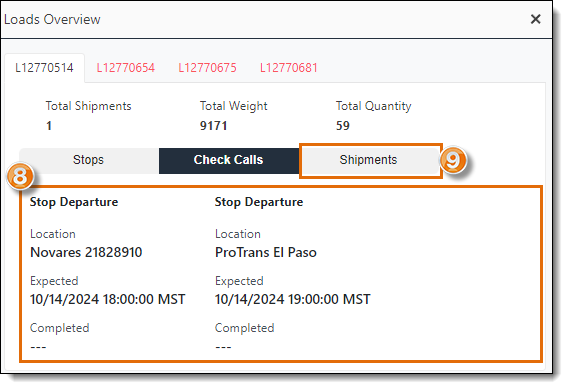
The Check Call tab opens.
- The Check Calls tab displays the check call information for the load.
- Click the Shipments tab.
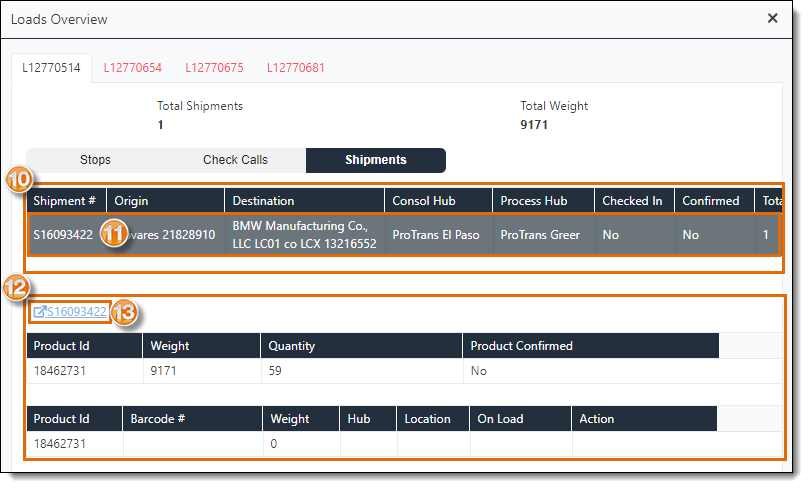
The Shipments tab opens.
- The Shipments tab displays a grid that contains a list of the shipments on the load, and the details about the shipments, including the Optimiz shipment number, the origin and destination of the shipment, the Consol and Process hubs of the shipment, whether the shipment has been checked in or confirmed, the total number of the products the shipment contains, the total weight and total handling unit count of the shipment.
- Click on a shipment in the grid to view additional details about the shipment, like the Product ID, pallet barcode numbers, weight of each pallet, the dock location or the load the pallets were last scanned into, and the last movements of the pallets.
- The details about the selected shipment will display below the grid.
- Click the Shipment Number link to open the selected shipment in Shipment Management in Optimiz.