Add or Edit a Company Code Setting
Overview
Company codes available for use throughout Optimiz can be defined in the Company Code tab of the Account System Settings.
Process
To Add a Company Code Setting:
- Click the Company Code tab.
- Click Add New Record.
- Enter a Name for the code (alphanumeric; required).
- Enter an Accounting System ID (alphanumeric; required).
- Select the Production checkbox to let the system know it is a production company code or leave blank if it is not.
- Select the Active checkbox to let the system know the code is active and to display it as an available selection in the tenant entity. Leave blank if inactive.
- Click Save to save the record or Cancel to discard.
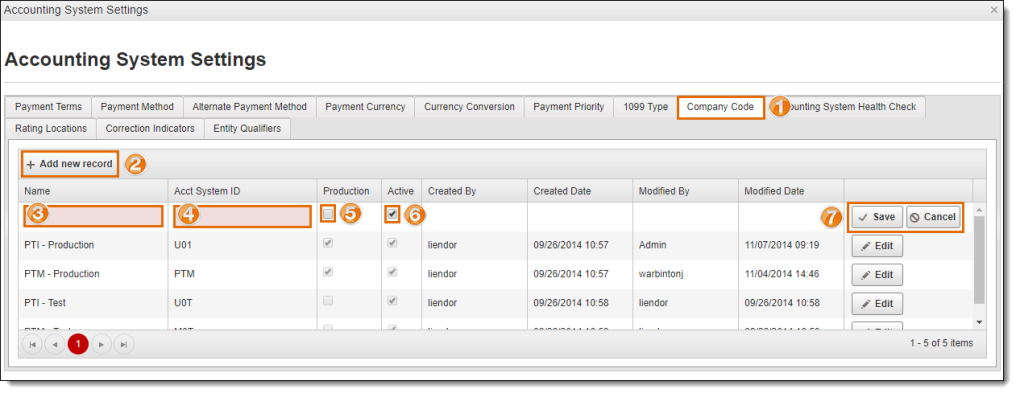
System will automatically record the Created By, Created Date, Modified By, and Modified Date upon saving the record.
To Edit an Existing Company Code:
- Click on the Company Code tab.
- Click Edit at the end of the row for the Company Code requiring updates.
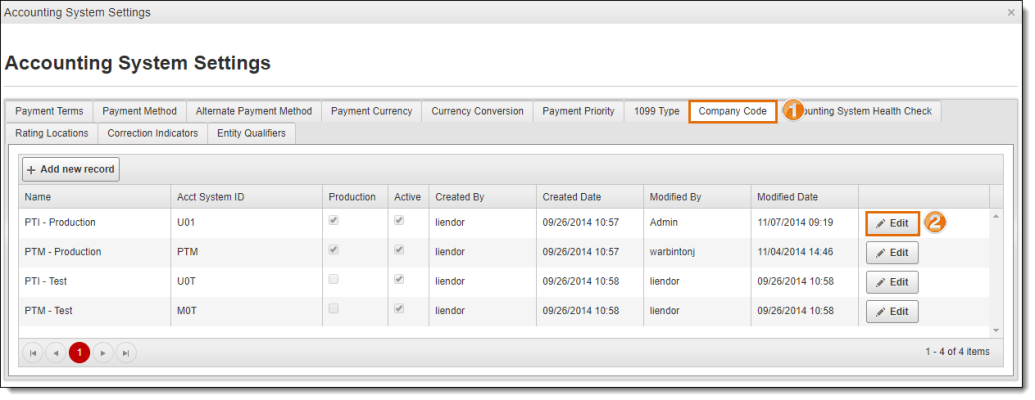
- Follow steps 3-7 above to edit the information for the selected payment term.
System will automatically update the Modified By and Modified Date upon saving the record.
Result
The new Company Code will now be available as an option when setting the Company Codefor a tenant entity. Any edits that are made to a Company Code at this level will also effect entities previously set to the edited Company Code.