Set a Recurring Invoice
Overview
When should I set a recurring invoice?
Set a recurring invoice for contracts billed on a specific time interval instead of for individual services.
Process
To Set a Recurring Invoice:
- Search for and open the BillTo entity. See Search for an Entity.
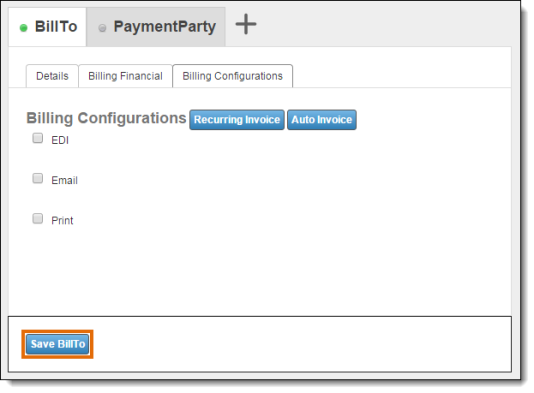
- Click Billing Configurations.
- Click Recurring Invoice.
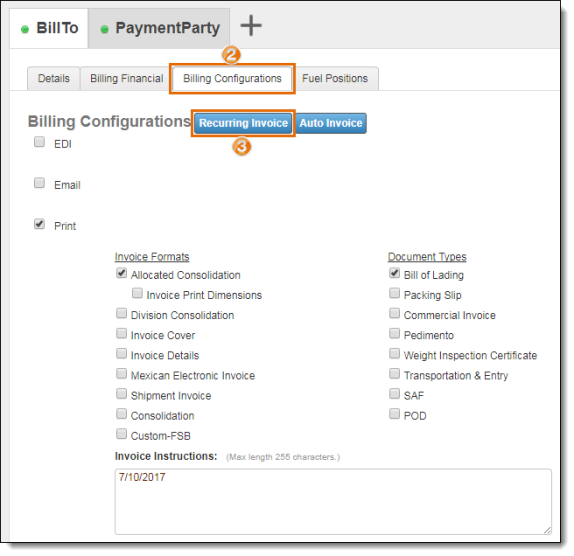
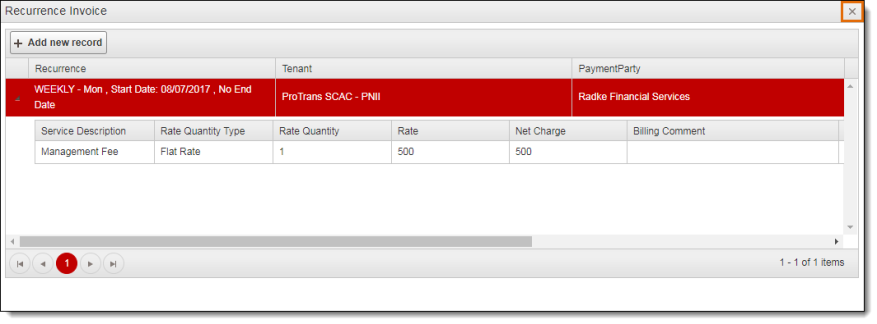
The Recurrence Invoice dialog box opens.
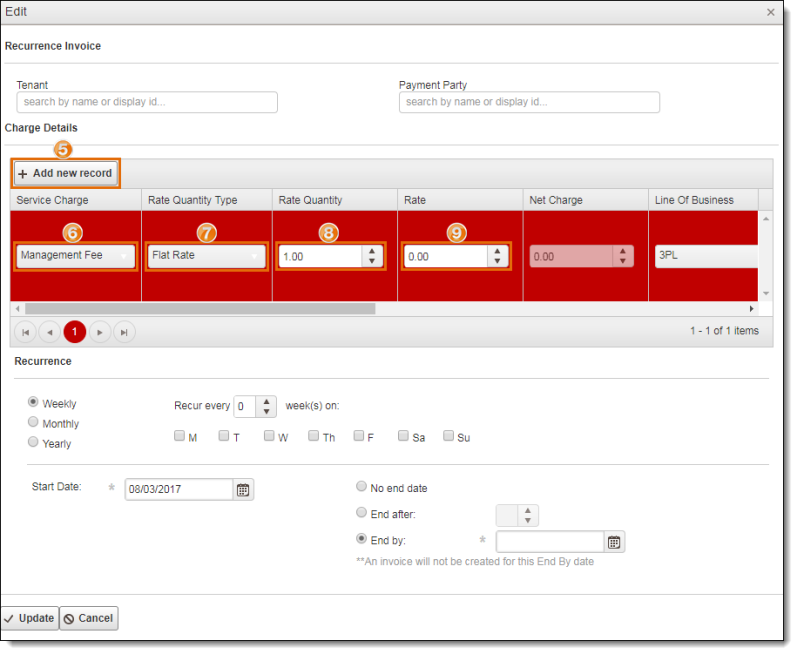
- Click +Add New Record.

The Edit window opens. The Tenant and Payment Party are automatically added to the invoice based on the financial information on the entity.
- Click Add new record to add a charge to the invoice.
- Select the Service Charge.
- Select the Rate Quantity Type.
- Enter the Rate Quantity.
- Enter the Rate. The Net Charge will calculate automatically.
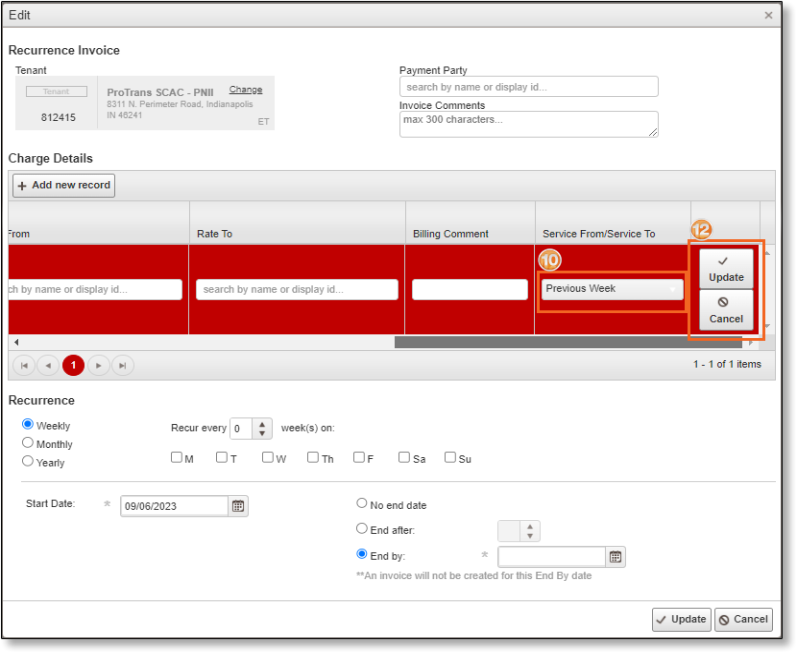
- Select the Service From/Service To period for the recurring charge. This must match the Recurrence set below.
- Enter any other rating information required by the customer.
- Click Update to add the rate to the invoice or Cancel to discard it.
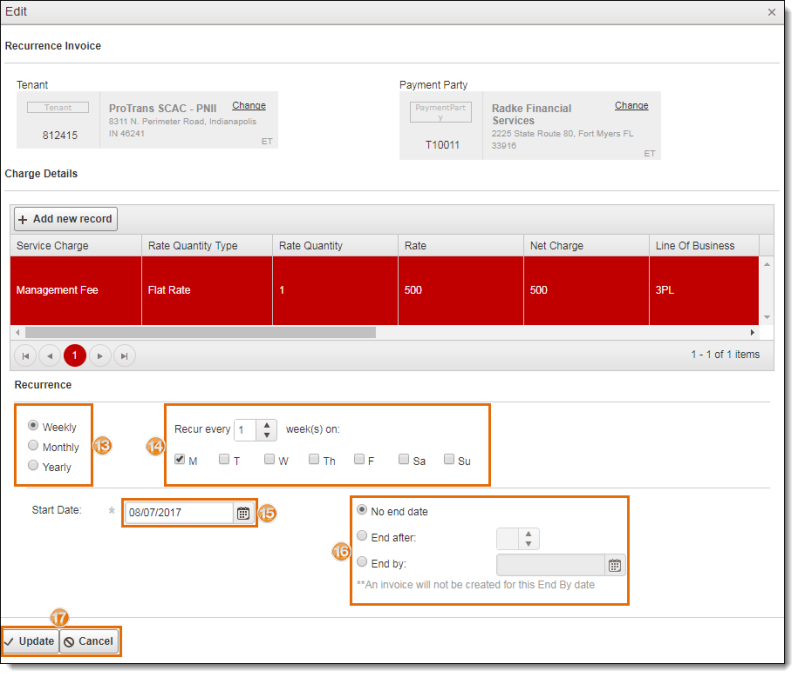
- Select the type of frequency occurrence (Weekly, Monthly, Yearly). This must match the Service From/Service To period set above.
- Select frequency details (choices change according to the frequency type).
- Select the Start Date from the date picker. The start date must be a valid day of recurrence.
- Specify the end date options. An invoice will not be created on the selected end date.
- Click Update to save the recurring invoice or Cancel to discard it.
- Click the X in the upper right corner to close the window.
- Click Save BillTo.
To Edit a Recurring Invoice:
- Search for and open the BillTo entity. See Search for an Entity for details.
- Click Billing Configurations.
- Click Recurring Invoice.

The Recurrence Invoice dialog box opens.
- Click Edit on the record to be updated. Scroll the window to the right if the Edit button is hidden.
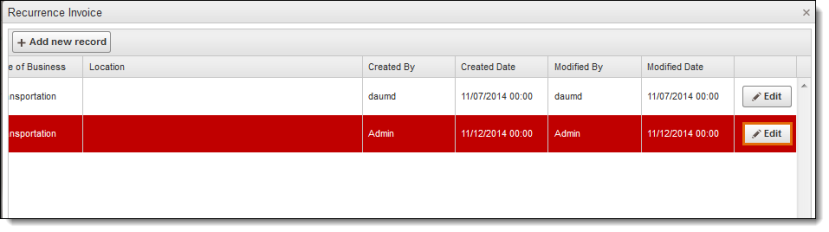
- Make changes to the invoice. All fields can be changed, and charges can be added or removed.
- Click Update to save changes or Cancel to discard them.

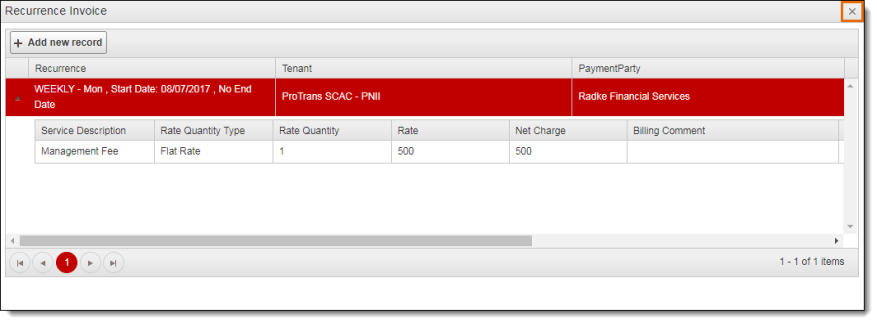
- Click the X in the upper right corner to close the window.
- Click Save BillTo.
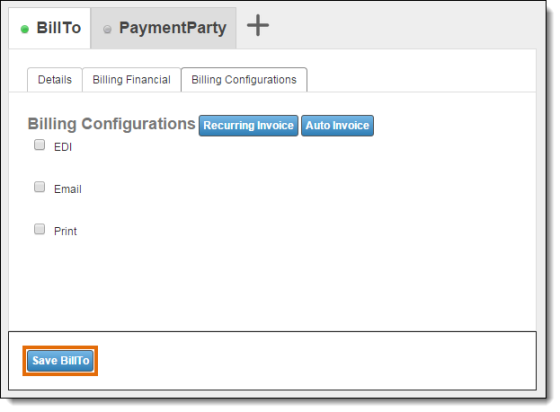
Result
The recurring invoice is saved. Charge invoices with the selected charges will be generated according to the selected recurrence schedule.