Define Alternate Pickup Carrier When Assigning Hub and Carrier
Overview
For consolidation accounts, ProTrans is assigned as the default carrier. Users entering shipments using this default do not have visibility to the actual ProTrans preferred carrier (the alternate pickup carrier) making the pickup. Defining the alternate pickup carrier in the Customer Hierarchy allows Optimiz to auto-populate this information.
When Should I Define an Alternate Pickup Carrier?
This is created for consolidated customers in accordance with their contracts with ProTrans.
Prerequisites
- Hub and Carrier must also be assigned. User cannot set an interline carrier without the Hub and Carrier assignment.
- Know the name of the ProTrans preferred carrier to designate as the interline carrier.
Process
To Define an Alternate Pickup Carrier at the Trading Partner Level:
- Open the Customer Hierarchy. See Access the Customer Hierarchy.
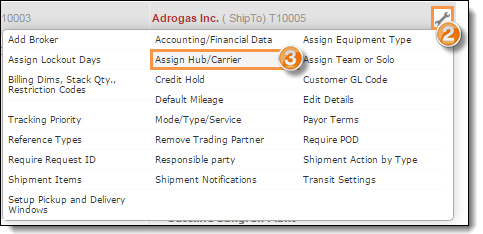
- Click the wrench at the appropriate level of the customer hierarchy.
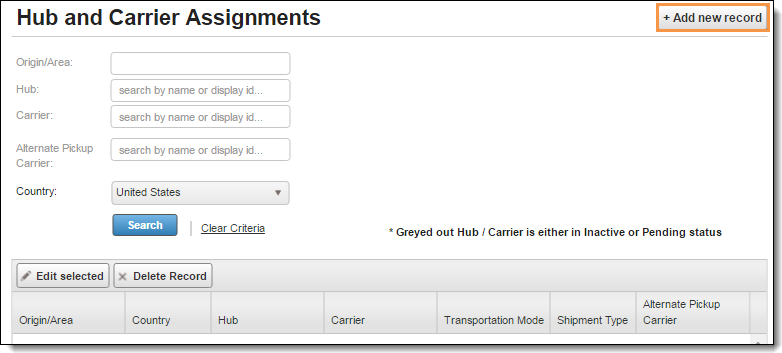
- Click Assign Hub/Carrier. The Hub and Carrier Assignments pop-up is displayed.
- Click +Add new record. The Add/Edit Hub and Carrier Assignments pop-up displays.
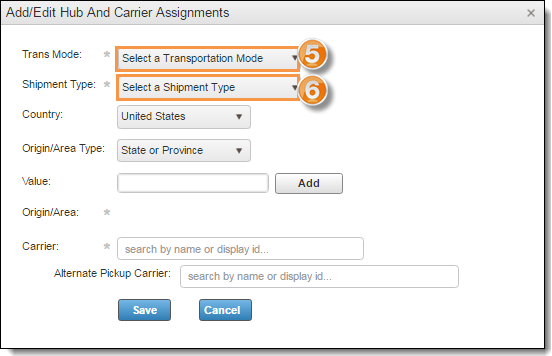
- Select a Trans Mode from the Trans Mode dropdown list.
- Select a Shipment Type from the Shipment Type dropdown list.
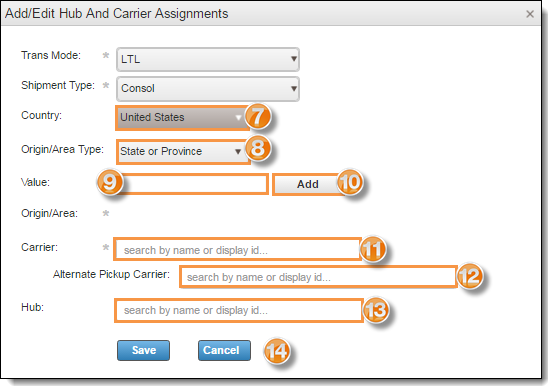
- Select the country from the Country dropdown.
- Click on the Origin/Area Type dropdown and select province or state.
- Enter the zip code in the Value field.
- Click Add.
- Enter the carrier name in the Carrier field and select from the results list.
- Enter the name of the alternate pickup carrier in the Alternate Pickup Carrier field and select from the results list.
- Enter the name of the hub in the Hub field and select from the results list.
- Click Save to save the setting or Cancel to discard.
 .
.
To Define an Alternate Pickup Carrier at Any Other Hierarchy Level:
- Open the Customer Hierarchy. See Access the Customer Hierarchy.
- Click on the wrench icon at the appropriate level of the customer hierarchy.
- Click Assign Hub/Carrier. The Hub and Carrier Assignments pop-up is displayed.
- Click +Add new record.
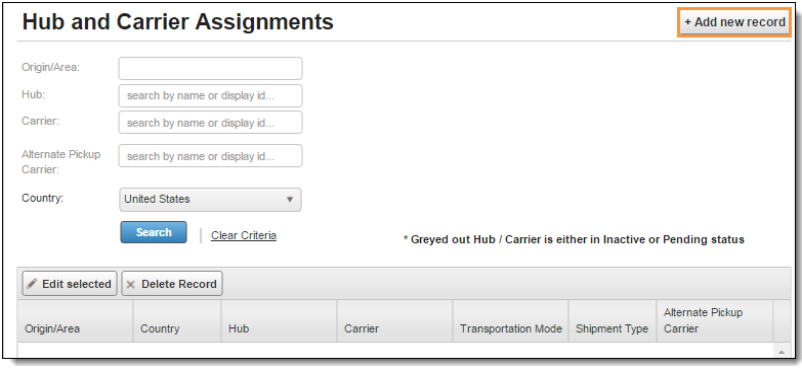
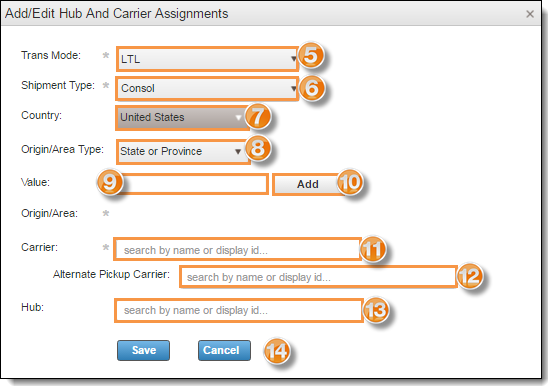
The Add/Edit Hub and Carrier Assignments box opens.
- Select Trans Mode from the Trans Mode dropdown list.
- Select Shipment Type from the Shipment Type dropdown list.
- Select the Country; choices are:
- United States
- Canada
- Mexico
- Select the Origin/Area Type; choices are:
- State or Province
- Three digits zip code
- Six/five digits zip code
- Enter the appropriate value.
- Click Add.
- Enter the carrier in the Carrier field and select from the results list.
- Enter the name of the alternate pickup carrier in the Alternate Pickup Carrier field and select from the results list.
- Enter the hub in the Hub field and select from the results list.
- Click Save to save the setting or Cancel to discard.
Result
The alternate pickup carrier exception for that origin (ShipFrom entity) is defined and will auto-populate when the Assigned Hub and Carrier are used for an LTL Consol shipment.